
An old iPad sitting on your nightstand can quickly become a source of frustration when simple apps lag, battery life plummets, or software updates stop arriving. Deciding to spend hundreds of dollars on a replacement or squeeze a few more years out of your current tablet directly impacts both your wallet and your daily productivity.
Unlike smartphones, which people replace every two to three years, iPads tend to linger in our homes far longer. Their durable build makes them ideal for casual entertainment, yet time eventually catches up with memory limits and processor speeds.
Evaluating your device's current health alongside modern hardware improvements helps you choose between a fresh purchase, a cheap repair, or a clever repurposing of your trusty screen.
Key Takeaways
- Apple supports iPads with software updates for roughly five to seven years, after which unpatched security vulnerabilities and dropped app support severely reduce usability.
- Performing a factory reset or purchasing an official battery replacement can resolve severe system lag and battery degradation without buying a new device.
- Functional legacy iPads can be repurposed as single-purpose home utilities, such as smart home dashboards, recipe displays, bedside clocks, or e-readers.
- Upgrading from older A-series chips to desktop-class M-series processors and expanded RAM enables desktop multitasking tools like Stage Manager and smooth 4K video rendering.
- Trading in an aging iPad while it still receives official software updates allows you to recover residual value before hardware obsolescence lowers trade-in prices.
Evaluation of Current Device Status
Before spending money on a new tablet, taking a close look at your current iPad determines if it still meets your daily demands. Hardware durability often outlasts operating system updates, meaning a physically pristine device might internally struggle to run modern software.
Checking system performance, app behavior, and security protections will show if your tablet is simply showing its age or reaching the end of its functional life.
Software Support and iPadOS Compatibility
Apple generally maintains software updates for iPads for roughly five to seven years. Newer entries, such as recent iPad mini, iPad Air, standard iPad, and iPad Pro generations running on modern chips, continue to receive the latest iPadOS releases and features.
Conversely, older models like early iPad Pro editions, legacy iPad Airs, and standard models from earlier generations eventually lose access to major system upgrades. When an iPad drops off the supported list, it no longer gains new interface options or productivity tools, leaving the user with a frozen feature set.
Beyond missing out on fresh features, remaining on an unsupported operating system introduces security vulnerabilities. Apple regularly issues patches to guard against malware, web browser exploits, and data leaks.
Running a tablet that no longer receives system updates means known security flaws stay unpatched, exposing personal data, login credentials, and stored financial information to potential threats whenever the device connects to the internet.
Signs of Hardware and Performance Decline
Hardware slowdowns usually manifest long before an iPad stops working completely. Users often notice system lag when switching between applications, typing on the virtual keyboard, or simply waking the display.
App crashes become more frequent as modern software demands more RAM than older systems possess. When memory constraints kick in, the tablet repeatedly reloads background apps or browser tabs, interrupting tasks and disrupting steady workflows.
Battery health plays an equally critical role in daily performance. Lithium-ion batteries naturally lose capacity over hundreds of charge cycles, reducing total screen time and requiring frequent recharges.
Severe battery degradation can also trigger thermal throttling, where the system intentionally slows down processor speeds to prevent sudden shutdowns and manage internal heat. This turn of events transforms a once portable, snappy device into a sluggish screen tied perpetually to a wall outlet.
App Support and Security Limitations
Third-party app developers prioritize hardware and software capable of running current operating systems. Over time, popular streaming platforms, productivity suites, and banking applications update their minimum software requirements, gradually dropping support for legacy iPadOS builds.
When an app stops supporting an older operating system, users cannot install security updates or access new app features. Eventually, those apps may refuse to launch altogether, turning once useful software tools unusable.
Relying on an unpatched tablet for online transactions or sensitive tasks carries noticeable risk. Unfixed software bugs allow malicious scripts on websites to exploit system vulnerabilities, potentially hijacking browser sessions or accessing stored information.
As app developers and security teams shift focus to modern devices, running outdated software creates an environment where essential privacy safeguards gradually vanish.
Advancements in Modern iPad Models

Upgrading to a recent iPad model introduces substantial improvements that extend far beyond basic speed boosts. Apple has revamped the tablet lineup over recent years, pairing high-efficiency processors with refined exterior designs and expanded hardware capabilities.
Reviewing these architectural changes highlights how far current tablets have advanced compared to older hardware generations.
Chipset Power and System Memory
The transition from older A-series mobile processors to desktop-class M-series silicon represents a massive leap in processing power. Early iPad models relied on chips built primarily for basic smartphone tasks, whereas current M-series processors easily handle intensive computing workloads.
Tasks that once strained older hardware, such as rendering 4K video clips or running complex graphics software, execute smoothly on modern silicon without draining battery power excessively.
System memory has expanded alongside processor capabilities to support demanding applications. Entry-level and mid-tier models now feature generous amounts of RAM, allowing multiple apps to stay active in memory simultaneously.
This expansion enables advanced multitasking environments like Stage Manager, letting users run overlapping windows, transfer files smoothly between applications, and avoid background app crashes during heavy use.
Display Technology and External Design
Modern iPads feature a dramatic visual redesign, replacing thick top and bottom bezels and physical Home buttons with uniform, all-screen designs. Screen real estate has expanded within compact footprints, giving users more viewable area for reading, drawing, or streaming content.
Biometric authentication has also evolved, moving to side-button Touch ID or secure Face ID sensors integrated cleanly into the thin border.
Screen quality has seen equal improvements with the inclusion of higher refresh rates, brighter panels, and advanced display technology. ProMotion technology delivers smoother scrolling and responsive stylus feedback by adjusting screen refresh rates dynamically.
Upper-tier models incorporate tandem OLED panels, producing deep blacks, vibrant contrast, and high peak brightness levels that outshine the duller, reflective LCD displays found on legacy tablets.
Port Modernization and Accessory Compatibility
Replacing the proprietary Lightning connector with industry-standard USB-C ports marks a major shift in versatility. USB-C provides significantly faster data transfer rates, enabling users to attach external storage drives, camera equipment, and wired network adapters directly to their tablets.
Higher-end USB-C and Thunderbolt ports also output native video signals to external monitors, transforming a portable device into a desk-bound workstation.
Accessory support has evolved to match these hardware upgrades. Modern iPads support advanced stylus accessories that charge magnetically along the side of the chassis while providing low latency, tilt detection, and squeeze shortcuts.
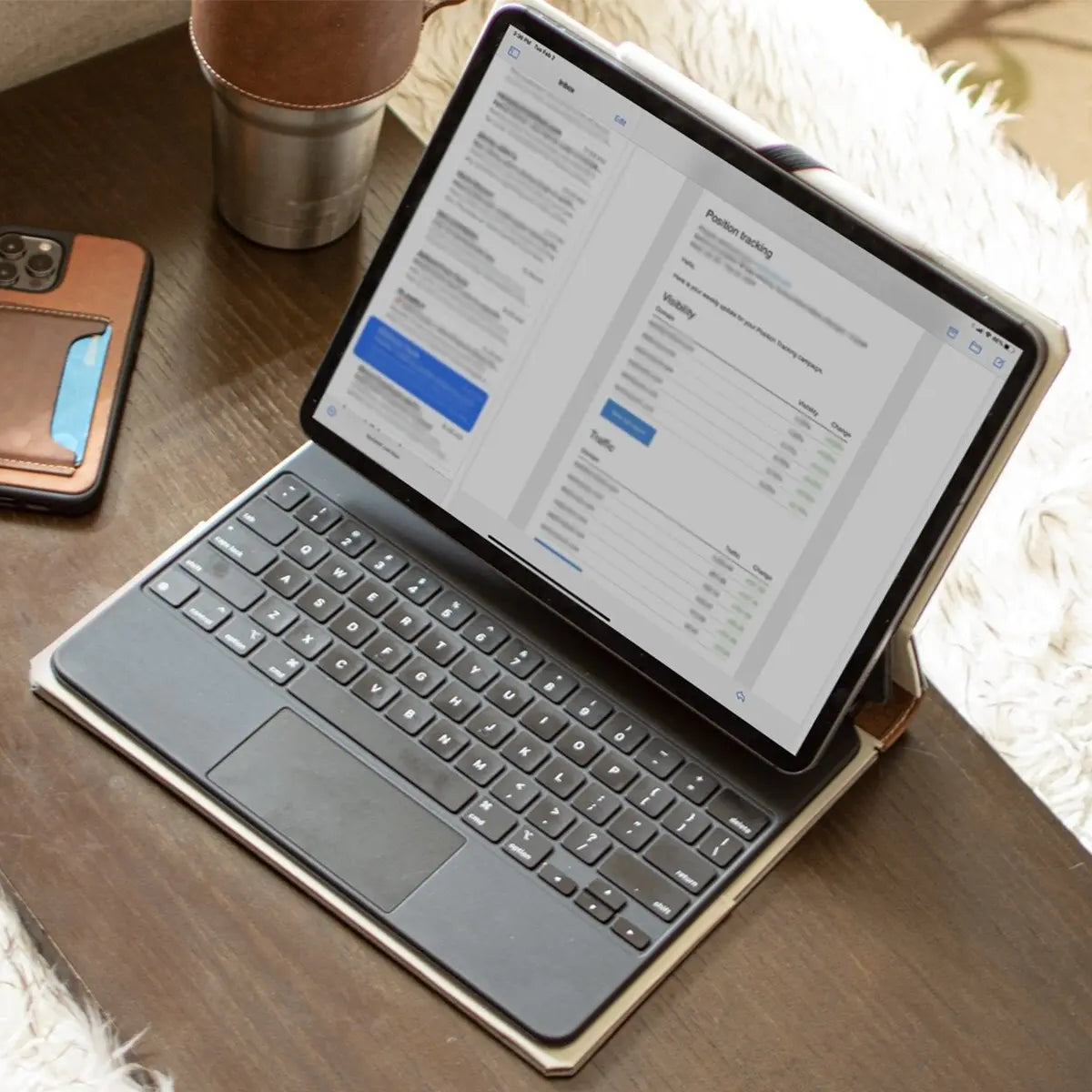
Similarly, updated keyboard covers featuring built-in trackpads and floating cantilever hinges turn the tablet into a practical laptop alternative for typing documents and managing file systems.
Cost-Benefit and Utility Analysis

Deciding to upgrade requires balancing financial outlay against practical value. A top-tier tablet offers impressive performance, but paying for high-end hardware makes little sense if your routine consists mainly of casual tasks.
Weighing daily requirements, potential repair expenses, and current device value ensures your money goes toward genuine utility rather than unnecessary specs.
Alignment of Daily Usage with Device Capabilities
How you use a tablet should guide any upgrading decision. Users who rely on iPads solely for watching video streams, reading digital books, or browsing news sites rarely need desktop-class processing power or advanced display tech.
For these lightweight tasks, an older tablet that still runs smoothly may continue to serve well without requiring an immediate investment in new hardware.
Conversely, users running creative software, editing high-resolution photos, or attempting serious multitasking will benefit greatly from modern features. Upgraded processors, extra RAM, and expanded display options dramatically shorten rendering times and improve system response.
Assessing if these modern additions match your daily habits prevents overspending on high-performance features you might never actually use.
Repair Expenses Versus Replacement Cost
When an older tablet begins failing, fixing the existing hardware is often an option worth considering. Official battery service costs far less than a brand-new device and can breathe fresh life into a tablet that otherwise meets your needs.
Replacing a cracked screen or installing a fresh battery often solves performance throttling and portability issues without forcing an expensive upgrade.
However, repair costs must be weighed carefully against the price of an entry-level replacement. Spending a significant sum to repair a device that is near the end of its software update cycle rarely yields long-term value.
If a repair bill approaches half the price of a current base-model iPad, purchasing a new device with years of guaranteed updates and a fresh warranty is usually the smarter financial choice.
Trade-In Value and Residual Worth
Older iPads retain a portion of their initial monetary value for several years, which can offset the cost of buying a new tablet. Trade-in valuation depends on device age, storage capacity, physical condition, and cosmetic wear.
Devices kept safe in protective leather iPad cases with clean screens and fully functional components receive the highest trade-in offers from electronics retailers and trade-in programs.
Timing a trade-in strategically prevents total value depreciation. As an iPad model approaches the threshold where Apple drops software support, its trade-in worth drops rapidly.
Selling or trading in an aging device while it still supports current operating systems allows you to recover residual value before the hardware becomes obsolete and financially worthless.
Alternatives to Immediate Upgrade

Replacing an iPad is not the only solution when performance slows down or usability drops. Several low-cost measures can revive sluggish hardware or redirect the device toward simpler tasks.
Applying maintenance tactics and alternate uses allows you to extract maximum utility from your existing tablet before committing to a costly purchase.
Storage Maintenance and System Resets
System storage full of accumulated app caches, downloaded video files, and system logs often slows down older hardware. Deleting unused applications, offloading media to cloud services, and clearing web browser caches frees up local flash memory, which helps the operating system manage background tasks more efficiently.
Performing a full factory reset wipes accumulated system bloat and reinstalls a fresh copy of iPadOS. A clean installation removes corrupted settings files and fragmented data, resulting in noticeably snappier navigation and improved stability on aging devices.
Battery Replacement Options
As tablets age, lithium-ion battery health deteriorates, causing reduced run times and potential performance throttling. Apple and authorized repair centers offer out-of-warranty battery replacements at a fraction of the cost of a new tablet.
Replacing a worn-out battery restores full portable usage and eliminates sudden power drops. Additionally, installing a fresh battery allows the system processor to run at peak speeds again without power-saving restrictions, resolving mysterious system slowdowns linked to battery degradation.
Alternate Roles for Legacy Hardware
Even when an iPad becomes too slow for modern multitasking or heavy web browsing, its screen and touch interface remain functional for single-purpose roles. Mounting an older tablet on a wall or counter turns it into a dedicated smart home dashboard for controlling lights, thermostats, and security cameras.
It can also serve as a permanent kitchen recipe display, a bedside digital clock, or a dedicated e-reader loaded with digital books. Assigning an older iPad to children for educational apps or configuring it as a streaming video station keeps the device useful while isolating daily wear to basic tasks.
Model Selection Guide for Upgraders

If maintenance steps no longer resolve performance issues and your daily needs demand modern hardware, selecting the right replacement requires matching your routine against current iPad models. Apple structures its tablet lineup around distinct usage styles, performance tiers, and physical formats.
Identifying which features align with your expectations ensures you purchase ideal hardware without overpaying for unused capabilities.
Base iPad for Everyday Tasks
The standard base iPad offers exceptional value for users seeking reliable performance for everyday tasks. Equipped with a modern processor, a bright screen, and support for essential accessories, it delivers everything needed for standard home and school usage.
Its accessible price point makes it an appealing option for households wanting a general-purpose tablet. This entry-level model excels at streaming video, browsing websites, managing email, and running casual games, making it a practical choice for most casual users.
iPad Mini for Ultra-Portable Needs
The iPad mini targets users who prioritize maximum portability without sacrificing processing capability. Its compact screen size and lightweight chassis make it easy to hold in one hand, slip into small bags, or use comfortably while traveling.
It provides an ideal canvas for reading ebooks, taking handwritten notes on the go, or managing field tasks. The smaller screen reduces available display area for split-screen multitasking, but users gain unmatched mobility and ease of handling in return.
iPad Air and iPad Pro for High-Performance Workflows
For demanding workflows, the iPad Air and iPad Pro deliver desktop-class silicon, high memory configurations, and advanced displays. The iPad Air sits as a powerful mid-tier option, offering high performance for photo editing, digital art, and active multitasking.
The iPad Pro represents the top tier, featuring advanced display technology like tandem OLED, high refresh rates, Thunderbolt connectivity, and expanded storage tiers designed for professional creative work. While these upper-tier models carry significantly higher price tags, their speed and expanded peripheral support justify the investment for power users and working professionals.
Conclusion
Recognizing when to upgrade an iPad comes down to identifying critical hardware and software boundaries. Dropped iPadOS support, unpatched security risks, persistent system crashes, and severely degraded battery health signal that a tablet is reaching the end of its main lifecycle.
When third-party apps stop updating or running entirely, daily usability drops significantly.
Before purchasing a replacement, exploring practical alternatives can save money. Clearing system storage, performing factory resets, or ordering an official battery replacement often restores smooth performance for basic tasks.
If a legacy device can no longer handle general tablet duties, converting it into a dedicated smart home hub, digital recipe board, or e-reader extends its value without added cost.
Choosing the right path forward relies on aligning your actual daily habits with your budget. Casual media viewers can comfortably stick with older hardware or entry-level base models, while creative professionals and heavy multitaskers gain true value from M-series processors, high refresh rates, and USB-C connectivity.
Evaluating your device status against your functional requirements ensures every dollar spent delivers real utility.
Frequently Asked Questions
How many years does an iPad usually last?
An iPad typically lasts five to seven years before Apple stops providing major iPadOS software updates. After software support ends, the tablet continues to function physically, but third-party apps will gradually stop working over time. Unpatched security risks also make using an unsupported operating system unsafe for sensitive online tasks, banking, or storing personal data.
Is it worth replacing the battery in an old iPad?
Replacing an iPad battery is worth the cost if the device still receives system updates and meets your daily computing needs. Official battery service restores full portable battery life and resolves performance throttling caused by power management systems. However, if the tablet no longer receives iPadOS security patches, spending money on battery repair offers limited long-term value.
What happens when an iPad stops getting updates?
When an iPad stops receiving operating system updates, it loses access to new features and essential security patches. Over time, third-party developers will update their apps to require newer software, causing legacy apps to fail or become unavailable for download. Unpatched security vulnerabilities also leave your personal data and online browser sessions exposed to potential web exploits.
What can I do with an old iPad that still works?
You can repurpose an older functional iPad into a dedicated home utility device like a smart home controller or kitchen recipe display. Legacy tablets work well for single-purpose jobs, including digital photo frames, bedside clocks, or dedicated e-readers. You can also dedicate an old device to children for educational games or stream media without system strain.
Should I buy a base iPad or spend extra for an iPad Air or Pro?
Buy the standard base iPad for basic web browsing and streaming, but choose an iPad Air or Pro for heavy multitasking and creative work. The entry-level iPad handles daily tasks smoothly at an affordable price point. If you require desktop-class M-series processors, high RAM for complex video editing, or advanced displays, investing in an Air or Pro is justified.