
Buying a tablet often feels like a gamble between gaining a useful daily tool and buying an expensive screen that gathers dust. Many shoppers question if adding a third device makes sense when they already own a capable smartphone and a laptop.
Today, tablets sit in a distinct middle ground between handheld phones and personal computers. They provide more display area and tactile flexibility than a mobile screen, yet they remain far lighter and more portable than a standard clamshell PC.
This guide evaluates everyday utility, system boundaries, peripheral costs, and hardware tiers to help you decide if an iPad matches your personal workflow, habits, and financial limits.
Key Takeaways
- An iPad excels at handwriting notes, drawing with a stylus, and consuming media, offering around 10 hours of battery life in a lightweight body weighing about 1 lb.
- Basic models like the standard iPad and iPad mini deliver the highest return per dollar, with entry prices between $349 and $499 handling daily web browsing and streaming needs.
- Outfitting a tablet for full productivity with an official keyboard ($299 to $349) and stylus ($79 to $129) raises the total investment to $900 or more, matching the price of a capable laptop.
- Tablet operating software imposes distinct limitations, including sandboxed file systems, mobile browser engines that lack desktop extensions, and constrained multi-window multitasking.
- A traditional laptop remains the superior choice for users who depend on programming tools, complex spreadsheet macros, or full desktop operating systems.
The Device Role Between Smartphone and Laptop
Tablets fill the practical space between the compact convenience of a mobile phone and the computing power of a personal computer. While smartphones handle quick communication and laptops manage heavy desktop workloads, a tablet offers a middle path centered on direct interaction and physical comfort.
The Bridge Between Handheld Screens and Full Computers
Holding a smartphone for hours strains the eyes and cramps the hands during long reading or viewing sessions. In contrast, an iPad provides a spacious canvas, typically measuring between 10.9-inch and 13-inch diagonally, without adding the physical bulk of a traditional computer.
The user interface relies on direct touch rather than a mouse pointer, which makes browsing files, turning pages, and manipulating visuals feel natural. An average tablet weighs around 1 lb, striking a practical balance between visual real estate and lightweight comfort that a user can easily hold on the sofa or carry with one hand.
Media Playback and Casual Entertainment Utility
Entertainment remains one of the strongest arguments for owning a tablet. High-resolution screens with wide color support and smooth refresh rates up to 120Hz deliver vibrant visuals for movies, streaming series, and video clips.
Built-in speaker arrays create crisp, expansive audio that routinely outperforms the thin sound coming from most laptops and pocket phones. For reading, the aspect ratio closely matches standard paper publications, making full-color magazines, digital books, and multi-page documents easy to read without constant zooming.
Gaming on a tablet also benefits from this format; titles designed for touchscreens feel responsive, while the underlying processors handle demanding graphics effortlessly.
Portability Advantages for Travel and Home Movement
Unlike a laptop that requires opening a lid, waiting through boot sequences, or waking up external accessories, an iPad powers on instantly at the touch of a button or a tap on the glass. During travel, the slim form factor fits onto crowded airplane tray tables, train seats, and cafe counters where a standard laptop chassis feels cramped.
Around the house, reliable battery life averaging 10 hours frees users from power cords, allowing seamless transitions from kitchen counter recipe lookups to living room reading without searching for an electrical outlet.
Practical Applications Across User Profiles

Because tablets combine a flat display with pen and touch input, different individuals adapt them for entirely different everyday tasks. Looking at specific daily routines highlights where the hardware excels beyond ordinary phones or traditional computers.
Digital Notes and Coursework Tools for Students
For academic environments, a tablet replaces heavy physical binders, paper notebooks, and stacks of printouts. Handwritten notes taken directly on the glass can be organized into searchable digital folders, converted into typed text, or backed up to remote storage automatically.
Students can import massive digital textbooks, highlight passages in vibrant colors, and scribble notes directly into PDF margins during lectures. Because the hardware is slim and silent, it sits flat on tiny lecture hall desks without obstructing lines of sight, making study groups and collaborative library sessions simple.
Stylus Capabilities and Visual Media Creation for Artists
Visual artists and designers find distinct utility in the Apple Pencil, which offers pinpoint precision, low input latency, pressure sensitivity, and tilt detection. Drawing directly on the screen replicates the tactile response of traditional sketchbooks while unlocking digital conveniences like layers, undo commands, and infinite color palettes.
Professional photo editing software takes advantage of color-accurate displays, letting creators brush out blemishes or adjust tone curves with exact fingertip control. Creative programs designed specifically for touch and stylus input turn the tablet into a self-contained digital studio.
Document Review and Mobile Office Tasks for Professionals
In an office setting, a tablet acts as an agile secondary device. Professionals can triage incoming messages, sign contracts with a stylus, and review lengthy spreadsheets from transit hubs or waiting areas.
When stationed at a desk, the tablet can link directly to a primary computer as a dedicated secondary display, holding chat channels, calendars, or reference notes off the main monitor. During presentations, the tablet connects wirelessly or through a single USB-C cable to projectors, giving speakers the freedom to walk around the room while annotating slides live.
Software Constraints and System Limitations

Despite impressive hardware performance, software boundaries separate tablets from full personal computers. Operating systems designed around mobile roots impose unique boundaries that can introduce friction into traditional computer workflows.
File Organization Contrasted with Desktop Computer Systems
Managing files on iPadOS differs substantially from the unrestricted folder hierarchies found on macOS or Windows. While the built-in Files app allows users to create directories, applications still operate within isolated environments, which can complicate moving files between different programs.
Connecting external storage drives works for basic copying, yet transfer speeds can lag, and visual progress indicators remain minimal. Furthermore, system-level tasks such as full hard drive cloning, advanced disk formatting, and automated local backups lack the robust depth expected on desktop operating systems.
Web Browser Restrictions and Desktop Site Compatibility
Although modern tablet browsers can request desktop versions of websites, they remain bound to the underlying WebKit engine. This restriction prevents users from installing standard desktop extensions, specialized browser utilities, or niche development tools.
Certain enterprise intranets, government databases, and legacy administration portals fail to load properly or display broken form controls. Heavy web applications, such as extensive database tables or intricate web-based financial tools, frequently run with reduced performance compared to standard desktop browsers.
Multi-Window Layout and Screen Space Bottlenecks
Multitasking on a tablet presents distinct challenges when balancing three or four active tasks at once. While window management systems like Stage Manager and Split View allow users to position multiple apps on screen, window placement remains rigid compared to freeform desktop monitors.
The physical screen size restricts how much information can stay visible at one time, creating visual clutter. Workers who rely on rapid copying and pasting across multiple open spreadsheets, databases, and communication channels will encounter persistent friction compared to working across multi-monitor desktop workstations.
The Total Cost of Ownership

Purchasing a tablet entails more than simply paying the retail price for the display unit. Realizing the full potential of the device often requires buyers to invest in hardware accessories, storage expansions, and recurring cloud subscriptions that noticeably raise the financial commitment over the lifespan of the hardware.
Accessory Costs for Keyboards and Stylus Pens
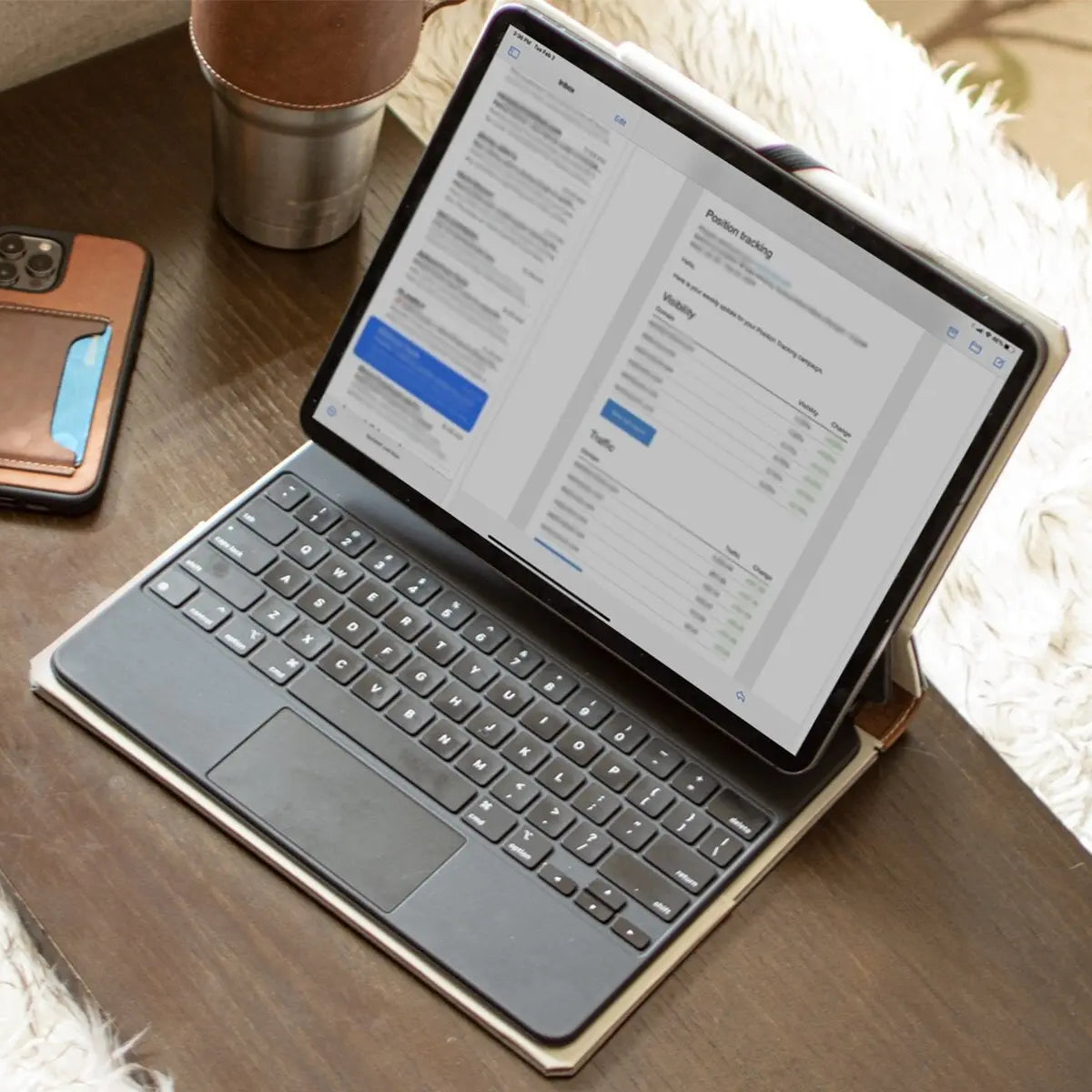
Using a tablet for serious typing or drawing requires separate input accessories that carry steep price tags. Official Apple accessories, such as the Magic Keyboard, range from $299 to $349, while an Apple Pencil costs between $79 and $129 depending on the model.
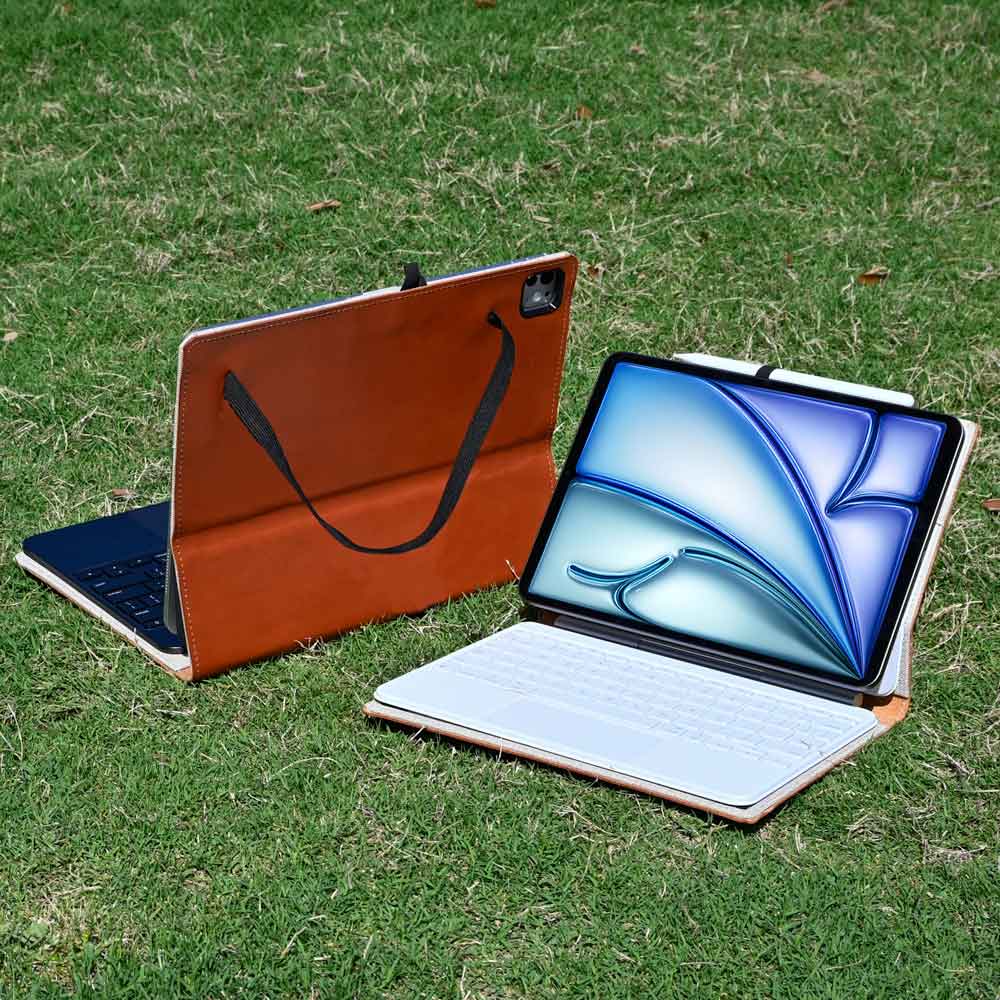
Third-party manufacturers like Logitech offer functional alternatives for significantly less money, though these choices sometimes lack magnetic wireless charging or the seamless trackpad responsiveness found on official gear. In addition to primary input tools, buyers must factor in protective cases and accessories; folio covers typically add $20 to $60, screen protectors cost $15 to $30, and dedicated high-wattage power bricks demand another $20 to $40.
Storage Tiers and Cloud Service Expenses
Choosing an inadequate internal capacity can quickly limit a tablet, as baseline configurations of 64GB or 128GB fill up rapidly with operating software files, offline streaming content, and app caches. Apple charges substantial markups to jump to higher tiers, commonly adding $100 to $150 to double the capacity to 256GB or 512GB.
Buyers who opt for base capacities to save upfront money frequently turn to cloud backup solutions to manage their data. Subscriptions to services like iCloud+ cost from $0.99 to $9.99 per month for plans between 50GB and 2TB, creating an ongoing monthly expense that compounds over years of ownership.
Device Longevity and Residual Market Value
Apple supports its tablet lineup with software updates for five to seven years, giving these machines a useful life that outlasts many competing alternatives. Durable aluminum enclosures withstand daily household wear, though internal batteries inevitably suffer chemical degradation over three to five years of repeated charges.
Replacing a worn battery through official channels generally costs between $99 and $119. When the time comes to upgrade, popular brand recognition and sustained demand in the second-hand market allow owners to recover a decent percentage of their initial investment through trade-in credits or private resales.
Model Selection and Purchase Alternatives

Selecting the ideal configuration requires matching personal habits with the appropriate processing capability and screen format. Balancing budget models against pro-tier machines reveals clear differences in utility, while highlighting scenarios where a traditional computer remains the superior choice.
Entry-Level Models for Everyday Home Needs
The standard 10.9-inch iPad and the compact 8.3-inch iPad mini provide ample capability for standard household activities. Powered by capable A-series processors, these devices easily handle web browsing, high-definition streaming, social media feeds, recipe viewing, and casual handwritten notes.
Both models serve as excellent shared household devices for entertainment and casual reading. With prices generally starting between $349 and $499, they deliver the highest return per dollar for general consumers who do not require specialized production tools.
Premium Air and Pro Configurations for High Performance
Upgrading to the iPad Air or iPad Pro introduces high-end processor silicon such as the M2 or M4 chip, alongside pro-grade hardware options. These premium tiers boast 120Hz ProMotion refresh rates, rich OLED or mini-LED panels, fast Thunderbolt data connections, and support for the Apple Pencil Pro.
Target users include visual artists, commercial illustrators, mobile video editors, and audio engineers who push processing limits regularly. For these users, faster export times and high color fidelity justify prices that often exceed $1,000 before accessories, whereas casual viewers will see little practical return from the extra horsepower.
Clear Indicators for a Laptop Instead of a Tablet
Certain workflows expose the structural limitations of tablet platforms, making a standard laptop the smarter purchase. Specialized software tools, such as software development environments, code compilation suites, full desktop database managers, and complex spreadsheet macros, remain exclusive to macOS or Windows.
Ergonomics also play a major role; a laptop offers a rigid clamshell hinge and a spacious physical typing deck that sits comfortably on a lap, whereas tablet folios often tip over or require flat surfaces. Furthermore, equipping a mid-tier tablet with an official typing cover and stylus can push the total cost between $900 and $1,400, a budget that easily buys a well-equipped ultrabook with superior multitasking, multiple monitor support, and double the base storage.
Conclusion
An iPad delivers outstanding value when purchased for what it does best: direct touch interaction, portability, and pen input. Students who take handwritten notes, digital artists creating illustrations, and frequent travelers seeking a compact media device experience the highest return on their investment.
These users take advantage of the hardware form factor rather than forcing it to mimic a traditional PC.
The most common buyer misstep is assuming a tablet can fully replace a laptop without verifying software compatibility first. Complex spreadsheets, coding environments, advanced file systems, and desktop browser extensions remain difficult or impossible to run on iPadOS.
Before buying, compare your budget against your daily software requirements. If your daily work relies on desktop operating systems, investing in a laptop provides far higher productivity, whereas choosing an iPad makes sense when touch convenience and mobile media consumption come first.
Frequently Asked Questions
Can an iPad completely replace my laptop?
An iPad cannot completely replace a laptop for most people due to software limitations. While it easily handles email, web browsing, and video streaming, iPadOS lacks traditional desktop file management and cannot run specialized programs like coding suites or advanced spreadsheet macros. If your daily workflow depends on desktop software or extensive multi-window multitasking, a traditional computer remains necessary.
Is an iPad worth buying if I already have a phone and a laptop?
An iPad is only worth buying alongside a phone and laptop if you need a digital stylus or a lightweight travel screen. It provides practical value for students taking handwritten notes, artists sketching digitally, and frequent flyers. If you only plan to browse the web or stream movies, your existing phone and computer already handle those tasks.
How much storage should I get on an iPad?
Most casual users should choose at least 128GB of storage, while creative professionals should aim for 256GB or higher. Base capacities like 64GB fill up very quickly with operating system files, downloaded video streams, and modern applications. Opting for 128GB or 256GB prevents storage warnings and avoids the immediate need to pay for monthly cloud storage subscriptions.
Which iPad model is best for everyday use?
The standard entry-level iPad provides the best balance of price and performance for daily household use. Starting at around $349, it handles web surfing, video streaming, basic gaming, and family communication without issue. Paying extra for the iPad Air or Pro is unnecessary unless you require advanced hardware for intensive creative production.
How many years does an iPad typically last?
An iPad typically lasts between five and seven years before losing official software support. Apple provides long-term operating system updates, ensuring the device remains secure and compatible with modern apps for years. However, the internal rechargeable battery will usually show noticeable degradation after three to five years of heavy daily charging.