
Heading off to campus means choosing the right portable computer. Many students face a tough decision: should they buy a versatile touchscreen tablet or stick with a traditional laptop?
An iPad excels at handwriting notes, drawing diagrams, and reading textbooks on the go. In contrast, a MacBook offers robust processing muscle, a full desktop operating system, and comfortable typing for lengthy research papers.
Both devices offer distinct advantages for coursework, but they serve different academic habits. Selecting the right machine depends on major requirements, physical comfort during long study sessions, and overall price.
Key Takeaways
- Software compatibility differs fundamentally: macOS runs full desktop applications, advanced spreadsheet functions, and local programming tools, while iPadOS relies on mobile-adapted applications and constrained multitasking.
- Input styles define academic strengths: an iPad paired with an Apple Pencil excels at handwritten notes, diagram sketching, and textbook markup, while a MacBook provides ergonomic typing and precise cursor control for long research papers.
- Academic majors dictate device viability: technical disciplines like engineering and computer science require a MacBook for compilers and virtualization, while visual arts and nursing benefit directly from the tablet touchscreen.
- Exam security and campus portals favor laptops: testing applications like Respondus LockDown Browser and university submission portals often restrict or disable mobile operating systems, making a MacBook more dependable for test-taking.
- Total costs are surprisingly similar: an iPad Air upgraded to 256GB of storage and bundled with an Apple Pencil and Magic Keyboard exceeds $1,170, matching or surpassing the purchase price of a baseline 13-inch MacBook Air.
System Platforms and Software Compatibility
Selecting the right computer for college requires an evaluation of how each platform manages daily coursework, software, and campus networks. The underlying software environment dictates which programs will launch, how files remain organized, and how effectively students can complete demanding academic tasks.
Core Distinctions Between iPadOS and macOS
iPadOS is built on a mobile foundation designed originally for touch interactions and lightweight tasks. In contrast, macOS is an established desktop operating system built for complex file structures, multi-window workflows, and comprehensive computing utilities.
File management differs significantly across both platforms. The Files app on iPadOS functions as a simplified document viewer with cloud synchronization, but it often hides local directories and restricts direct file movement between different applications.
The Finder on macOS gives students unrestricted control over local storage, custom folder hierarchies, nested archives, and external storage drives.
Multitasking highlights another operational contrast. iPadOS uses Split View and Stage Manager, which limit how many application windows can stay open simultaneously and how freely users can move them.
macOS provides complete window freedom. Students can stack, resize, minimize, and arrange dozens of overlapping windows across multiple virtual desktops without restrictions.
Desktop Applications and Web Browser Capabilities
Desktop applications and their tablet counterparts show noticeable functional gaps. Microsoft Office and Google Workspace exist on both platforms, but the iPad applications are scaled-down mobile versions.
Microsoft Word on iPad lacks advanced citation managers, complex formatting options, and macro support. Microsoft Excel on iPad restricts pivot table creation, data analysis toolpacks, and complex formula editing.
The Mac versions provide the full suite of desktop features required for intensive research and quantitative analysis.
Web browsing reveals similar distinctions. Safari on iPadOS identifies as a desktop-class browser, yet it still uses mobile-derived WebKit code that occasionally misinterprets desktop-only web interfaces or denies access to browser extensions.
Safari and Google Chrome on macOS run full desktop browser engines with complete extension stores, developer inspection tools, and background script capabilities.
Specialized software access further separates the two machines. Students who need programming environments, command-line utilities, local database engines, or technical utilities cannot run them on iPadOS.
Apple restricts iPadOS from running unsanctioned background scripts or sideloaded software, whereas macOS includes a Unix terminal, support for package managers, and open installation policies.
Exam Security Programs and University Portals
Exam security programs create major hurdles for tablet users. Many colleges mandate strict testing utilities such as Respondus LockDown Browser, Honorlock, or Proctorio for midterms and finals.
While Respondus offers an iPad edition, individual professors must deliberately enable tablet access for each specific test. Many universities forbid tablet-based test-taking altogether because mobile environments present security vulnerabilities during remote monitoring.
Learning management systems like Canvas and Blackboard operate smoothly for basic viewing on iPad apps, but file submissions with unique extensions, audio recordings, or embedded code can encounter upload failures. A MacBook handles these portals through standard desktop web browsers, ensuring reliable submissions for every document format.
Campus academic departments also publish minimum technology guidelines that require an actual desktop operating system, ruling out iPads as primary student computers.
Study Tasks and Input Methods

Academic success depends on how smoothly students interact with their notes, assignments, and study materials. The hardware input style establishes how a device functions, acting either as an interactive digital notebook or an efficient workstation for writing and research.
Digital Pen Integration for Notes and Diagrams
Annotating lecture slides and digital textbooks is an area where the iPad shines. With an Apple Pencil, students can write handwritten notes directly on slide handouts during a fast-moving lecture, highlight passages in digital textbooks, and convert handwritten text into typed notes.
Digital handwriting also simplifies coursework involving mathematical formulas, chemistry diagrams, and quick sketches. Writing complex calculus notation, organic chemistry benzene rings, and physics free-body diagrams is natural with a stylus on glass.
Doing the same on a MacBook requires cumbersome equation editors, external graphics tablets, or specialized coding languages.
Digital notebook applications such as Goodnotes and Notability integrate smoothly with the stylus. These applications sync handwritten notes across cloud drives, record lecture audio synchronized to handwritten strokes, and permit search indexing across handwritten pages.
Physical Keyboard Performance for Long Essays
Typing comfort determines how easily students complete lengthy writing assignments. Drafting 10-page research papers or senior theses demands a stable typing deck and adequate travel distance for the switches.
The built-in MacBook keyboard delivers consistent tactile resistance, generous palm rests, and an ergonomic angle that minimizes wrist fatigue during three-hour writing sessions.
Keyboard layout differences also affect writing speed. Standalone laptop keyboards offer standard spacing and familiar shortcut buttons.
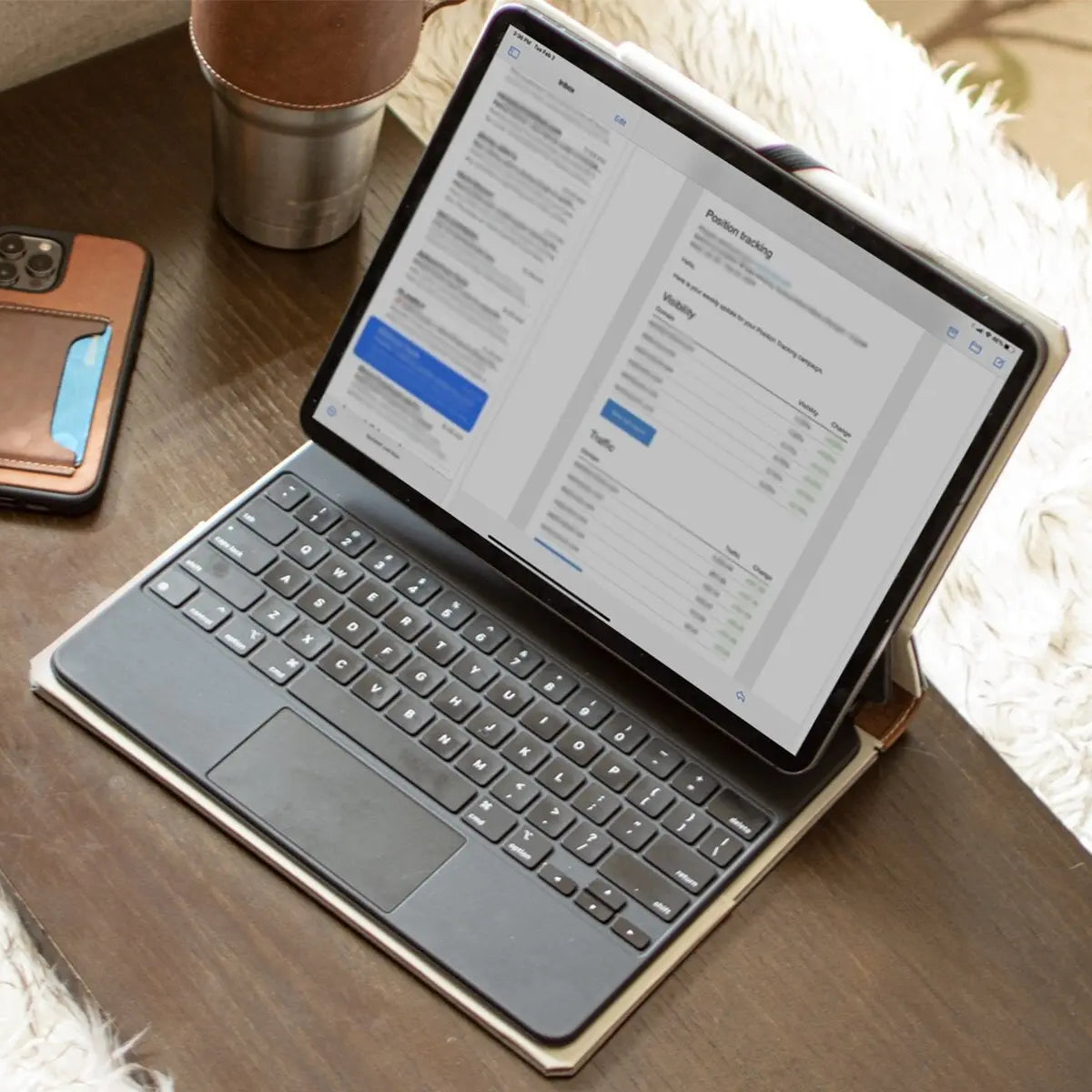
Tablet keyboard accessories, such as the Magic Keyboard or third-party folios, condense certain rows, reduce overall switch travel, and often omit dedicated function rows on smaller models.
Trackpad performance completes the typing experience. The MacBook glass trackpad remains exceptionally responsive, offering fluid cursor movement and multi-finger gestures.
While iPadOS supports trackpad input, the circular cursor mimics a human fingertip rather than a sharp pointer, making fine text selection across paragraphs slower and more prone to positioning errors.
Window Management and Document Organization
Side-by-side reference document placement is essential during extensive research. macOS lets users place a PDF reader on the left, a web browser on the right, and a word processor in the center, sizing each window to the exact dimensions needed.
This flexibility allows students to cross-reference multiple sources while typing without hiding background windows.
Transitioning between reading assignments and drafting papers is immediate on a Mac through trackpad gestures and desktop spaces. On an iPad, organizing more than two documents side by side feels cramped, requiring frequent application switching that interrupts writing momentum.
Storage and retrieval of downloaded course materials also favor desktop architecture. College courses require downloading compressed archives, raw datasets, and varied media files.
macOS handles compressed files natively through Finder, allowing students to extract, organize, and store course materials into nested folders without third-party file converters.
Suitability Across College Majors

Academic disciplines impose vastly different requirements on student hardware. A setup that excels in lecture halls for one degree might fail completely to run the software mandated by another field of study.
Demands of Engineering and Computer Science
Engineering and computer science programs demand substantial computing flexibility. Students must run integrated development environments, virtual machines, local compilers, and computer-aided design (CAD) software such as SolidWorks, AutoCAD, and MATLAB.
Operating system restrictions make tablets unsuitable as primary machines for STEM fields. iPadOS cannot compile code locally in languages like C++, execute virtualization software, or interface with external microcontrollers through custom ports.
macOS supports native Unix terminal workflows, multiple programming environments, and robust tools such as Xcode and Visual Studio Code.
Students who attempt to rely solely on a tablet in technical majors must depend on campus computer labs to complete their weekly programming and design assignments, losing the convenience of working from home.
Requirements of Humanities, Business, and Communications
Humanities, communications, and social science courses center on intensive reading and high-volume essay writing. For these degrees, an iPad paired with a keyboard case can handle daily reading and basic word processing, although extended writing sessions remain more comfortable on a traditional laptop.
Business and finance programs present distinct technical hurdles. Students in these disciplines rely heavily on Microsoft Excel for financial modeling, accounting ledgers, and statistical analysis.
The iPad version of Excel lacks support for advanced macros, data analysis toolpacks, and complex pivot table adjustments. A MacBook provides full spreadsheet functionality, ensuring students can execute corporate finance models without restrictions.
Assessing general degree requirements shows that a tablet can satisfy basic humanities coursework, but a MacBook covers every academic scenario without requiring software workarounds.
Workflows for Visual Arts and Health Sciences
Visual arts and design disciplines benefit greatly from direct screen contact. With applications like Procreate and the precision of the Apple Pencil, an iPad functions as a professional digital sketchbook and drawing tablet.
Students can sketch, paint, and retouch photos directly on the display, which is impossible on a MacBook without connecting an external graphics tablet.
Health sciences and medical tracks also align well with tablet features. Pre-med, nursing, and biology students face heavy memorization requirements involving anatomy, physiology, and pathology.
Interactive three-dimensional anatomy applications on an iPad allow students to rotate, dissect, and annotate organ structures with their fingers.
Clinical environments further highlight the advantages of a tablet form factor. Health science students on hospital rotations benefit from the lightweight, clipboard-style frame of an iPad, which slips into a lab coat pocket and allows rapid patient chart reviews while walking between rooms.
Physical Design and Campus Usability

Walking across a sprawling university campus requires hardware that fits easily into a backpack, withstands daily travel, and operates reliably in tight spaces. Physical dimensions, desk ergonomics, and power efficiency determine how well a device adapts to daily campus routines.
Weight, Size, and Transit Convenience
Total carry weight varies depending on how the devices are configured. An 11-inch iPad Air weighs about 1.0 lb by itself, but adding an Apple Magic Keyboard increases the total weight to roughly 2.3 lbs.
A 13-inch MacBook Air weighs 2.7 lbs. While an isolated tablet is noticeably light, adding protective covers and typing accessories brings its transit weight very close to that of a laptop.
The physical footprint of each device also impacts campus transit. The compact profile of an iPad lets it slide into slim messenger bags or crowded backpacks alongside heavy course materials.
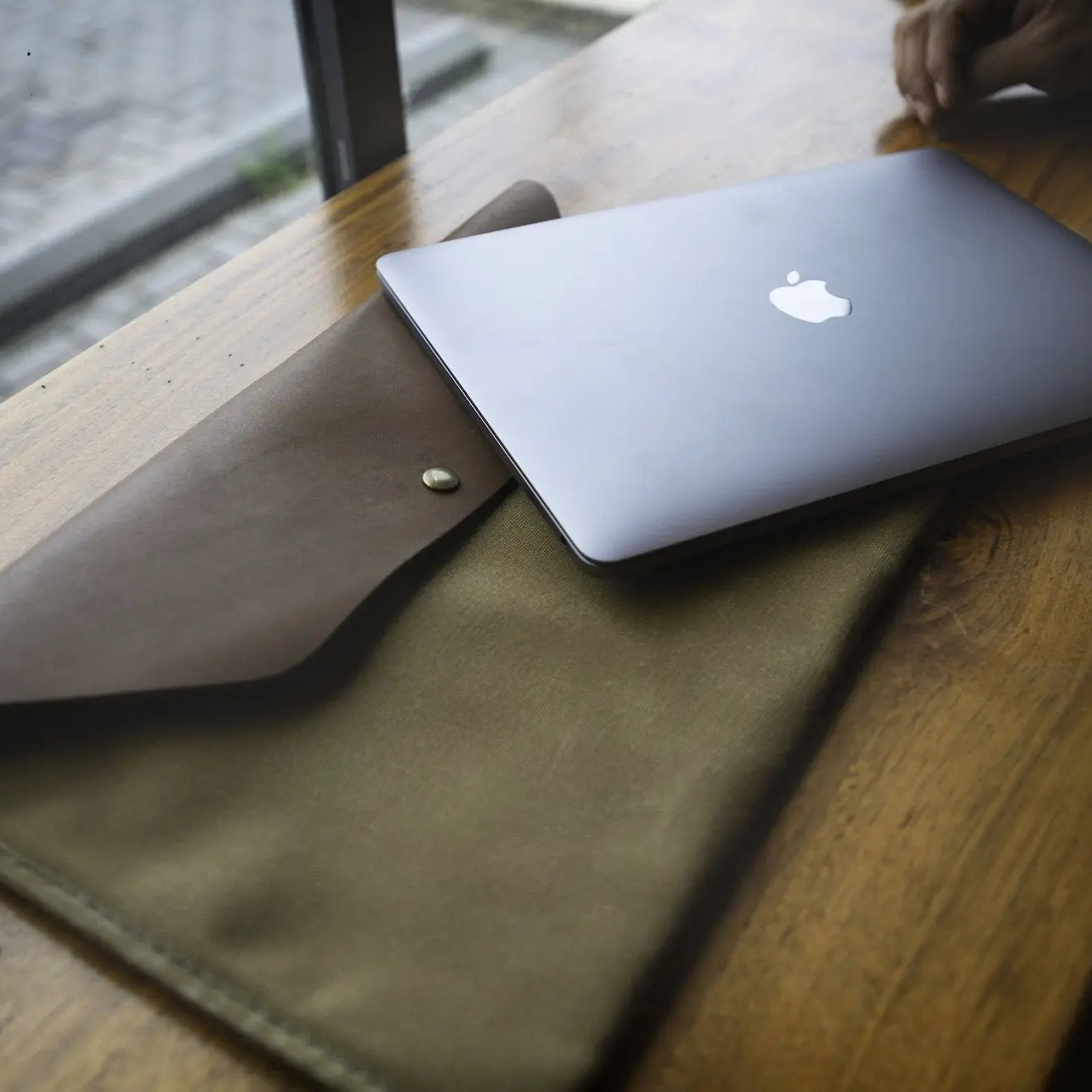
Durability during daily commuting presents another distinction. A MacBook features an all-metal clamshell housing that protects its screen and keyboard, though sliding it into a slim MacBook sleeve helps prevent corner dings and surface scratches caused by textbooks inside a crowded backpack.
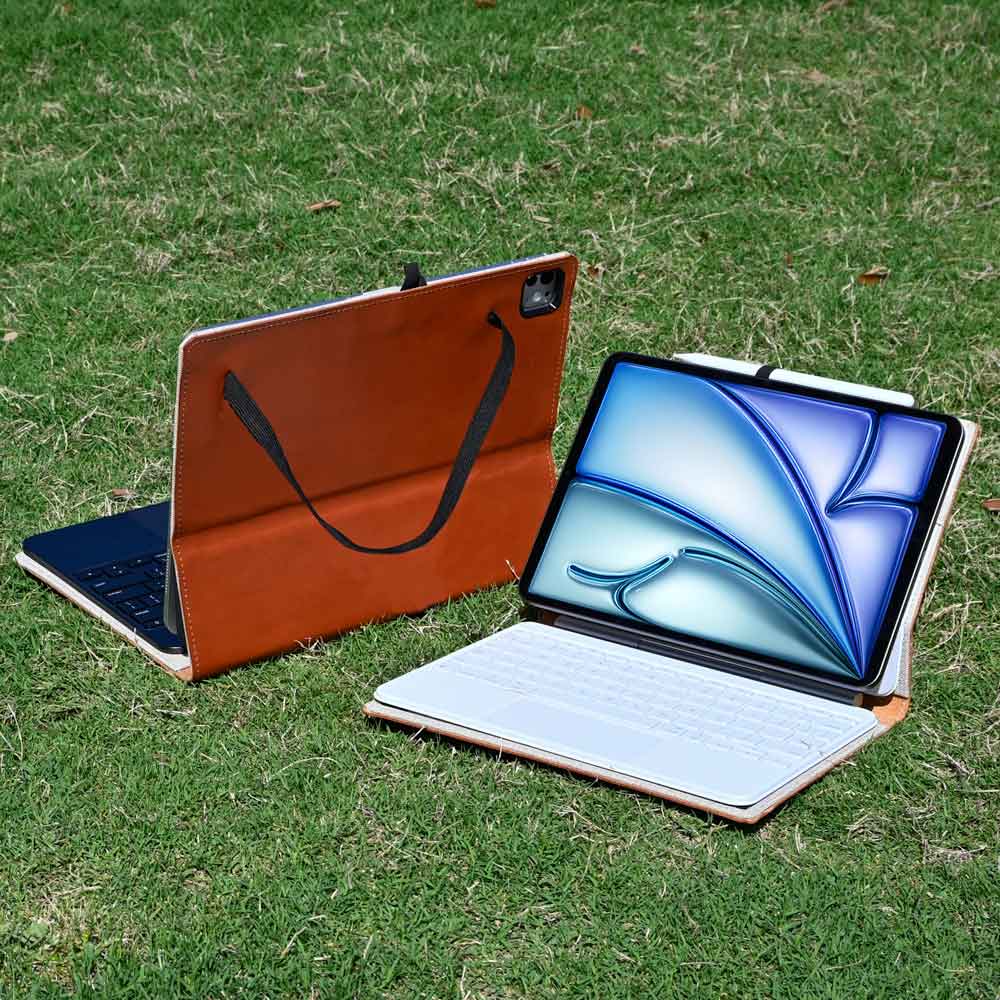
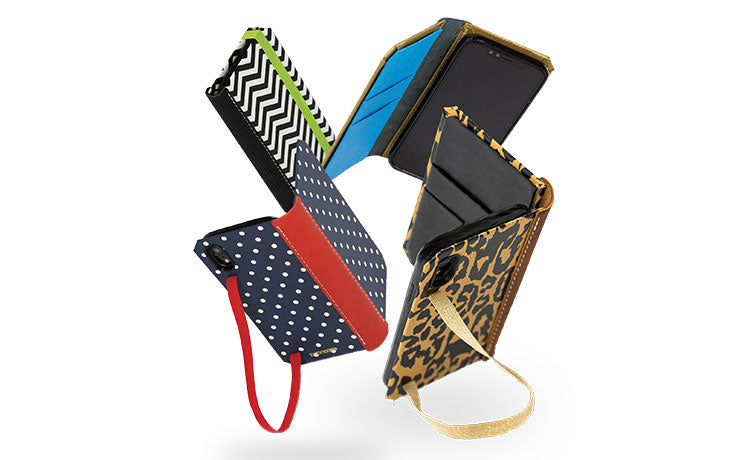
Meanwhile, an iPad relies on an exposed front glass panel; pairing the tablet with a structured leather iPad case shields the screen from pressure cracks while providing a firmer, non-slip grip when walking between lectures.
Stability on Small Desks and Laps
Lecture hall ergonomics reveal substantial differences in physical stability. University auditoriums often feature compact fold-out desks that provide minimal surface space.
A MacBook balances its weight in the bottom half of the chassis, resting securely on narrow ledges without tipping backward.
Typing on a lap or soft surface exposes the mechanical limitations of detachable keyboard docks. Because an iPad houses its processor, battery, and display in the screen itself, propping it up to type creates a top-heavy balance.
Third-party keyboard kickstands often require significant desk depth behind the display, which can overhang the edges of compact auditorium desks or wobble on a lap.
The single-unit construction of a laptop avoids these balance issues entirely. A MacBook opens smoothly to any viewing angle and maintains rigidity on uneven surfaces without magnetic disconnects.
Battery Reliability for Full-Day Attendance
Battery performance determines how dependent students become on campus power outlets. Both devices offer impressive runtimes, but their energy consumption diverges across academic tasks.
An iPad provides approximately 10 hours of screen-on time during continuous handwritten note entry and web research at moderate brightness levels. A MacBook Air equipped with Apple silicon routinely delivers 15 to 18 hours of productivity, easily lasting through four back-to-back lectures and evening library sessions.
Workload intensity creates noticeable power differences. Running multiple background tabs, video conferencing, and word processors simultaneously drains tablet batteries quickly.
The MacBook platform manages heavy multitasking while conserving energy efficiently.
Power adapters and outlet availability complete the daily transit profile. Both systems charge through standard USB-C connections using compact 30W or 35W wall chargers.
Because a MacBook lasts through long school days on a single charge, students can leave their power cords at home rather than searching for open wall outlets in crowded classrooms.
Financial Investment and Device Longevity

Purchasing college technology represents a major financial commitment for students and families. Determining the true cost requires looking past the base price tag to account for essential accessories, storage upgrades, and device durability over four academic years.
Initial Retail Cost of Entry
Baseline retail prices create an initial impression that tablets are the more economical choice. An entry-level iPad starts at $349, while the midrange iPad Air begins at $599. In contrast, a 13-inch MacBook Air starts at $999 or $1,099 depending on the processor configuration.
Education promotions help reduce these initial figures. Apple offers student discounts throughout the year, lowering device prices by $50 to $100 and providing seasonal back-to-school promotions that bundle gift cards.
Base storage configurations influence practical college costs significantly. Entry-level iPads have historically included 64GB or 128GB of internal storage, which fills up quickly with recorded lectures, textbooks, and software updates.
College coursework over four years generally requires at least 256GB of local storage. Upgrading an iPad Air to 256GB adds $150 to the purchase price, bringing the tablet much closer to the starting cost of a MacBook Air, which already begins at 256GB.
The Added Expense of Peripherals and Accessories
Peripherals and add-on accessories represent a substantial hidden expense for tablet buyers. An iPad functions as a touchscreen slate out of the box, but converting it into a productive academic machine requires an Apple Pencil for $79 to $129 and a dedicated keyboard case such as the Magic Keyboard for $299 to $349.
Adapters and connection hubs add further costs. While both devices rely on USB-C ports, tablet users who need to connect standard USB drives, SD cards, or external monitors often purchase multi-port adapters costing $30 to $70.
Total out-of-pocket expenses illustrate the true financial comparison. Purchasing an iPad Air at $599, adding the 256GB storage tier for $150, an Apple Pencil for $129, and a Magic Keyboard for $299 pushes the total setup cost past $1,170.
At that price point, the tablet bundle costs more than a baseline MacBook Air, which includes a built-in keyboard, a glass trackpad, and full desktop functionality right out of the box.
Hardware Lifespan Across Four College Years
Long-term performance consistency differs across mobile and desktop platforms. Apple supports both iPadOS and macOS with software updates for five to seven years.
However, macOS maintains full utility for complex academic multitasking much longer, whereas mobile operating systems can slow down as applications demand more memory.
Physical durability over time also affects overall value. A MacBook features a rigid aluminum body and a mechanical keyboard designed to withstand four years of backpack transport.
iPad accessories, particularly magnetic keyboard cases and polyurethane covers, tend to suffer from frayed edges, worn hinge joints, and connection problems after two or three years of daily campus use, requiring expensive replacements.
Resale and trade-in values provide a final financial consideration. Apple hardware holds trade-in value better than most competing brands.
At graduation, a well-kept MacBook Air generally retains stronger trade-in credit or secondary market value than an iPad bundle with heavily worn accessories, returning more money to the student.
Conclusion
Choosing between an iPad and a MacBook comes down to your academic program and study habits. The iPad delivers unmatched flexibility for writing handwritten notes, illustrating diagrams, and working on the move during clinical rotations.
In contrast, the MacBook remains the superior all-around computing workhorse, offering unrestricted window management, full desktop software compatibility, and an ergonomic keyboard built for long research sessions.
Students enrolled in engineering, computer science, and finance should choose the MacBook to avoid software roadblocks with proctored exams, code compilation, and advanced spreadsheets. Those in visual arts or healthcare can thrive on an iPad setup, provided they budget for an Apple Pencil and a protective keyboard case.
For students with financial flexibility, pairing a base MacBook Air with an entry-level iPad provides the best balance, delivering full computing capability alongside a dedicated digital notebook.
Frequently Asked Questions
Can an iPad completely replace a laptop for college?
An iPad cannot completely replace a laptop for most college students due to software and multitasking limits. While tablets handle reading and basic typing well, iPadOS lacks full desktop applications like advanced Microsoft Excel, native programming tools, and unrestricted file management. A traditional laptop remains necessary for complex coursework and specialized academic software.
Is a MacBook or an iPad better for taking notes in class?
An iPad is generally better for in-class note-taking because of its touchscreen and Apple Pencil support. The tablet allows students to write handwritten notes directly on lecture slides, sketch complex formulas, and annotate digital textbooks naturally. However, a MacBook is faster for students who type their notes in fast-paced lectures and prefer an integrated physical keyboard.
Is an iPad actually cheaper than a MacBook for college?
An iPad seems cheaper initially, but adding required accessories often makes it as expensive as a MacBook. While an entry-level iPad starts around $349, purchasing an Apple Pencil, a protective keyboard case, and extra storage quickly pushes the total setup cost toward $1,000. A MacBook Air includes a full keyboard and trackpad, offering superior overall value.
Can I take proctored college exams on an iPad?
You usually cannot take proctored college exams on an iPad because most testing software requires a desktop operating system. Programs like Respondus LockDown Browser and Honorlock have strict security rules. While tablet versions exist for select tools, professors frequently disable mobile access, requiring students to complete tests on a desktop platform.
Which device should engineering or computer science majors choose?
Engineering and computer science majors should choose a MacBook instead of an iPad. Technical majors require running local compilers, coding editors, virtual machines, and specialized design software that iPadOS cannot execute. A MacBook provides a native Unix terminal and broad programming compatibility, allowing students to finish coursework without relying on campus computer labs.