
For many iPad owners, the tablet serves as a portable screen for streaming movies, reading books, and replying to messages. Adding an official Apple Pencil transforms that flat glass into a responsive canvas for handwriting and drawing.
However, the accessory carries a substantial price tag, forcing shoppers to pause before making a purchase. Spending extra money on an optional tool feels risky if it ends up forgotten in a desk drawer after a few days.
While graphic designers and college students often view the stylus as an absolute necessity, casual users might wonder if their habits justify the expense.
Key Takeaways
- Tablet compatibility is strict across generations, requiring you to pair the 1st generation with Lightning models, the 2nd generation with older flat-edged designs, the USB-C version with modern entry or mid-tier tablets, and the Pencil Pro exclusively with M2 iPad Air or M4 iPad Pro tablets.
- Pressure sensitivity is omitted on the $79 Apple Pencil USB-C, making it suitable for plain handwriting and document signing but poorly equipped for nuanced digital painting and shading.
- Battery recharging depends on the hardware tier, offering roughly 12 hours of active runtime across all models, but only the 2nd generation and Pencil Pro recharge wirelessly through magnetic tablet attachment.
- Budget third-party styluses priced between $20 and $40 provide reliable palm rejection for simple tapping and note-taking, making them sensible alternatives if you do not need pressure detection or magnetic charging.
- Long-term maintenance requires factoring in $19 four-packs of replacement tips from Apple, alongside potential accelerated tip wear every two to three months if you use textured, paper-style screen overlays.
Hardware Features and Model Comparison
Apple produces several stylus models designed to suit different budgets and tablet designs. Each variation offers distinct physical connectors, pairing systems, and sensor capabilities.
Knowing how these devices interact with your specific tablet ensures that you select hardware compatible with your daily routine without paying for unused extras.
Differences Across Apple Pencil Generations
The current catalog consists of four distinct styluses: Apple Pencil 1st generation, Apple Pencil 2nd generation, Apple Pencil USB-C, and Apple Pencil Pro. Each model pairs with specific iPad releases, meaning that you cannot simply pick any stylus off a shelf.
The Apple Pencil 1st generation works with older tablet hardware, including the iPad 6th generation through the iPad 9th generation, as well as early iPad Pro releases. It also pairs with the iPad 10th generation, though that tablet requires a separate adapter to connect.
The Apple Pencil 2nd generation is compatible with flat-edged tablet designs, specifically the iPad Pro 11-inch (1st through 4th generation), the iPad Pro 12.9-inch (3rd through 6th generation), the iPad Air (4th and 5th generation), and the iPad mini 6th generation.
The Apple Pencil USB-C offers broad compatibility across nearly all modern tablets featuring a USB-C port, including the iPad 10th generation, modern iPad Air releases, and recent iPad Pro models.
The Apple Pencil Pro works exclusively with modern hardware, such as the iPad Air with M2 chips and the iPad Pro with M4 chips. Attempting to use the Pencil Pro on older iPad models will result in no response, making device verification an essential first step before purchasing.
Precision, Pressure Sensitivity, and Tilt Support
All four styluses deliver high input accuracy, translating your physical movements into lines on the screen with almost zero perceptible delay. When your hand moves across the glass, the stroke appears directly beneath the nib, creating an intuitive writing response that feels natural to beginner users.
Differences emerge in advanced drawing controls. Pressure sensitivity adjusts line thickness and darkness based on how firmly you push against the screen.
The Apple Pencil 1st generation, Apple Pencil 2nd generation, and Apple Pencil Pro include this pressure detection, allowing digital artists to shade or vary stroke weight naturally. In contrast, the Apple Pencil USB-C lacks pressure sensors entirely, keeping lines at a uniform weight regardless of downward force.
Tilt support remains standard across all four models. By angling the stylus barrel against the tablet surface, you can produce broad shading strokes, much like tilting a traditional graphite pencil on paper.
For basic handwriting, tilt and pressure matter very little, but they are useful for detailed drawing and calligraphy.
Battery Life and Power Connection Methods
Charging and storage methods differ significantly across the lineup. The Apple Pencil 1st generation features a male Lightning plug hidden beneath an end cap.
Users charge it by plugging it directly into the charging port of the tablet or by connecting it to a separate charging cable using a small plastic coupler.
The Apple Pencil 2nd generation and Apple Pencil Pro use inductive charging. Both models snap directly onto a magnetic strip located along the long edge of compatible tablets, automatically pairing and refilling the battery whenever the stylus rests in place.
The Apple Pencil USB-C features a sliding magnetic cap that reveals a female USB-C port, requiring a standard cable for power. While it docks magnetically to the side of the iPad for safe storage, it does not draw power wirelessly from that connection.
Each model provides roughly 12 hours of active writing time on a full charge. Fast charging ensures minimal interruption; snapping an empty stylus to an iPad or plugging it into a cable for just 15 seconds typically restores about 30 minutes of functional battery life.
A complete recharge takes between 15 minutes and 30 minutes.
Utility Across Primary User Groups

The utility of an Apple Pencil varies widely depending on what you expect your tablet to accomplish. A tool that feels essential for one user may provide almost no value to another.
Evaluating how the accessory functions across standard tasks highlights where it earns its keep.
Digital Notes and PDF Annotation for Students
Typing notes during lectures works well for long paragraphs of text, but standard typing setups struggle with complex academic material. Handwriting allows students to sketch chemical bonds, write out mathematical equations, draw geometric diagrams, and insert arrows between ideas instantly.
Popular study applications like Goodnotes, Notability, and Apple Notes allow users to import digital textbooks, slide decks, and research papers directly. Students can highlight passages in multiple colors, write margin notes on assigned readings, and convert their handwritten script into searchable digital text.
Handwritten indexing ensures that finding specific topics before an exam takes seconds rather than minutes of manual page flipping.
Digital Art and Graphic Design
Visual creators gain the greatest utility from the stylus hardware. Applications such as Procreate, Adobe Fresco, and Clip Studio Paint turn the tablet screen into a responsive digital canvas.
The precision of the stylus tip allows artists to paint fine hair strands, ink comic panels, and blend colors with fluid control.
For many illustrators and graphic designers, an iPad paired with an Apple Pencil serves as a compact replacement for traditional desktop drawing tablets. Dedicated graphics tablets require tethering to a heavy computer tower, whereas an iPad lets creators sketch outdoors, on public transit, or on a couch without sacrificing precision or software capability.
Document Review and Office Workflow
In corporate and small-business environments, the stylus accelerates administrative paper handling. Instead of printing out contracts, signing them with an ink pen, and scanning them back into a computer, workers can open documents in PDF reader apps, sign on the screen, and email them back in moments.
The stylus also provides pinpoint control when working in complex spreadsheets or photo management tools. Selecting tiny cells in Microsoft Excel, adjusting color curves in Adobe Lightroom, or removing unwanted dust spots from image files is much faster with a sharp stylus nib than with a wide human fingertip.
The Daily Usability Experience

Spec sheets describe technical capabilities, but physical comfort and mechanical feel determine how often you will actually pick up the stylus. The everyday tactile experience involves unique physical interactions that differ from writing on traditional surfaces.
Screen Texture and Resistance
Writing with an Apple Pencil involves tapping a hard plastic tip against a sheet of smooth, glossy glass. This interaction produces a distinct clacking sound and offers little friction, causing the nib to glide rapidly across the tablet surface.
Traditional pen on paper provides natural tactile drag that stabilizes handwriting. Users switching to a glass tablet often notice that their penmanship looks messier at first because the lack of resistance causes the stylus to slip.
While some users adapt to this slippery texture within two weeks, others install matte screen overlays to recreate the familiar feel of paper fibers.
Palm Rejection Reliability
Natural handwriting requires resting the side of your hand directly on the writing surface. The iPad handles this through responsive palm rejection software, which differentiates between the broad, flat contact of a resting hand and the focused point of the stylus nib.
Because the software reliably ignores the hand, you do not need to hover your wrist in an uncomfortable position above the glass. You can lean your arm on the screen just as you would on a physical notepad, allowing for natural posture and clean lines without stray ink dots or accidental page scrolls.
Physical Comfort and Grip Fatigue
The barrel design influences how comfortable the tool feels during long study sessions or drawing projects. The 1st generation model features a fully round, glossy barrel that can feel slippery and tends to roll off uneven desks.
The 2nd generation, USB-C, and Pro models feature a matte finish with one flat edge, making them easier to hold and preventing them from rolling across flat tables.
Each stylus weighs approximately 0.73 oz (20.7 g), providing a balanced feel similar to a high-end ink pen. For transport, models with flat edges attach firmly to the magnetic side of the tablet, keeping the tool securely mounted while you carry the tablet between meetings or classes.
Comparison with Third-Party Alternatives

Apple does not hold a monopoly on tablet styluses. Numerous third-party companies manufacture stylus pens that cost significantly less while handling basic writing tasks.
Comparing these alternatives helps clarify whether Apple's premium price point delivers meaningful advantages.
Price Gaps Across Current Stylus Options
Cost differences between official and generic styluses are substantial. Official models retail between $79 for the USB-C version and $129 for the 2nd generation or Pencil Pro.
In contrast, well-reviewed generic alternatives from third-party brands commonly sell for $20 to $40.
This price gap creates a major financial incentive for casual users. Choosing a budget stylus saves $50 to $90 per purchase, which can be redirected toward protective cases, software subscriptions, or extra tablet storage.
Feature Sacrifices in Non-Apple Accessories
Lower prices require hardware compromises. Third-party styluses almost universally lack pressure sensitivity, making them unsuitable for expressive digital painting or calligraphy.
They also lack shortcut features like the double-tap sensor on the Apple Pencil 2nd generation or the squeeze sensor and haptic motor found on the Pencil Pro.
Pairing methods also differ. Official Apple styluses integrate directly with iPadOS, showing live battery percentages in system widgets and pairing automatically.
Generic styluses often rely on basic capacitive sensors or manual buttons on the top cap, which can turn off unexpectedly during use or lead to inconsistent connections.
Situations Where Budget Pens Are Sufficient
A budget stylus is often completely adequate for light, non-creative workloads. If your tablet use focuses on tapping interface buttons, browsing web pages, marking simple checklists, or signing a delivery receipt once a week, spending $129 on an Apple Pencil Pro is unnecessary.
Low-cost pens are also ideal for young children or classroom environments where accessories face rough treatment or frequent loss. In these scenarios, the lower replacement cost outweighs the missing artistic features.
Long-Term Costs and Practical Drawbacks

The financial and practical commitments associated with an Apple Pencil extend past the day you open the box. Maintenance expenses, structural vulnerabilities, and changing usage habits all influence whether the purchase remains sensible over time.
Expense of Replacement Tips and Screen Accessories
The plastic nib on the stylus wears down through regular use. Rubbing against the glass eventually thins the tip wall, exposing the fragile metal sensor inside.
A pack of four official replacement tips costs $19 from Apple.
Users who add a textured, paper-style screen protector to improve grip accelerate this wear significantly. These rough screen films act like fine sandpaper on plastic nibs, often requiring a new tip every two to three months.
Factoring in the protector itself, which costs between $30 and $40, accessory upkeep can add $50 or more each year.
Durability and Accidental Loss
Styluses contain delicate internal electronics, tilt sensors, and pressure components. If the accessory slips from your fingers and lands tip-first on a hard tile floor, the internal sensor shaft can bend or break, rendering the device unusable even if the outer plastic looks intact.
Accidental loss during travel is another persistent hazard. While the magnetic hold on compatible iPads is strong enough for walking across a room, sliding the tablet into a tight backpack or purse easily dislodges the stylus.
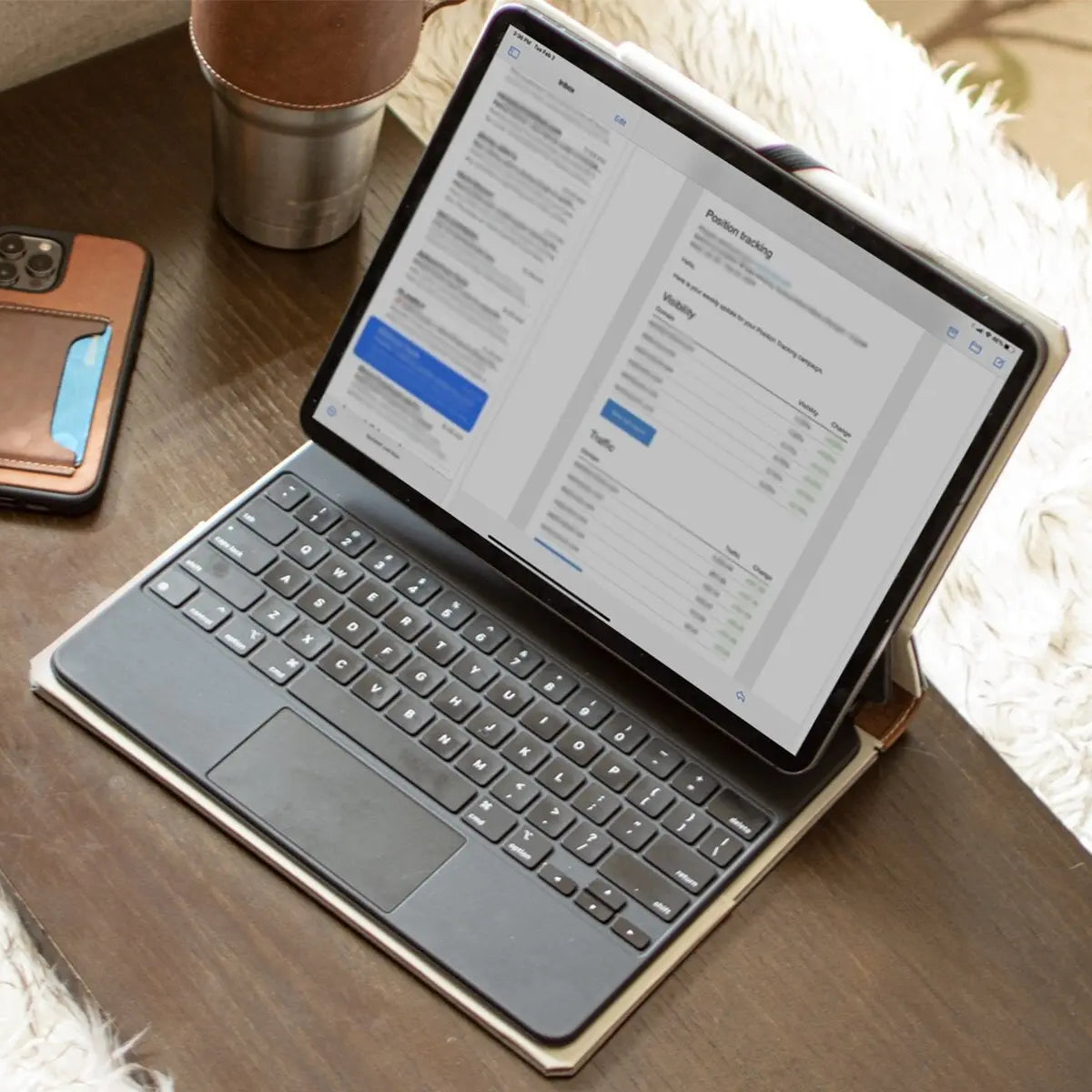
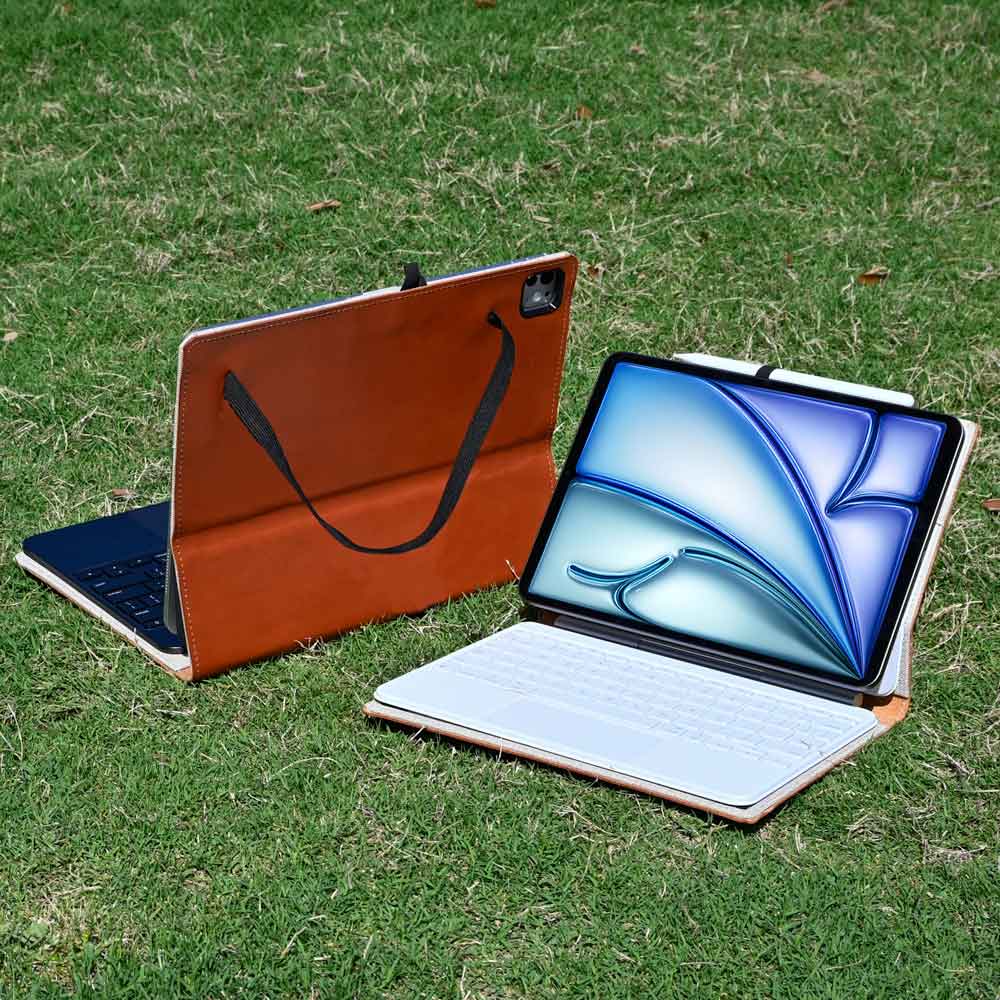
Many users solve this issue by pairing their tablet with an iPad leather case that features a built-in stylus sleeve or secure wrap-around closure. Replacing a lost $129 stylus creates an unwelcome expense that budget pens avoid.
The Risk of Device Disuse Over Time
Many buyers purchase a stylus with ambitious plans to learn drawing or handwrite daily journal entries, only to abandon those routines after a few weeks. Handwriting text takes longer than typing on a laptop or tapping on an on-screen display, prompting busy users to revert to standard text entry.
If your tablet activities center primarily on watching streaming video, browsing social feeds, and reading online articles, the stylus will spend most of its life attached to the tablet frame unused. Recognizing your established device habits helps prevent an expensive accessory from turning into an idle decorative object.
Conclusion
Deciding if an Apple Pencil justifies its cost comes down to how your hands interact with the tablet display each day. For digital illustrators, graphic designers, and students writing complex equations by hand, the accessory quickly pays for itself in speed and precision.
For someone who uses an iPad primarily to stream video, read articles, and browse social feeds, the stylus offers very little practical benefit and will likely sit unused.
If you determine that handwriting or digital drawing fits your routine, match the tool to your exact workload rather than buying the most expensive option on the shelf. The Apple Pencil USB-C provides responsive handwriting at an accessible $79 price point, while visual artists needing pressure detection should look to the Apple Pencil 2nd generation or Pencil Pro.
Budget-conscious users who only need a casual pointing tool can save substantial money with a third-party stylus, ensuring that every dollar spent aligns with their actual habits.
Frequently Asked Questions
Does the Apple Pencil work on an iPhone?
No, the Apple Pencil does not work on any iPhone model. Apple styluses rely on custom display sensors built exclusively into iPad screens. Because iPhones lack this specialized hardware, the screen will not register stylus contact at all. If you want a stylus for your phone, you must use a standard capacitive rubber-tipped pen instead.
Will an Apple Pencil scratch my iPad screen?
No, an Apple Pencil will not scratch your iPad screen under normal use. The stylus nib is made from smooth plastic that is softer than the tablet glass. However, if dirt or hard grit gets trapped between the tip and the display, dragging the stylus across the surface can cause fine scratches. Keeping your screen clean prevents this damage.
How long do Apple Pencil tips usually last?
Most Apple Pencil tips last between four months and two years, depending on your daily usage habits. Writing occasionally on smooth glass produces minimal wear, allowing tips to last well over a year. However, drawing daily or using a matte, paper-feel screen protector introduces rough friction that can wear down a tip in two to three months.
Do third-party styluses work as well as the Apple Pencil?
Third-party styluses work well for basic handwriting and menu navigation, but they lack advanced drawing features. Budget options include palm rejection and smooth lines, making them great for casual notes. However, they almost always lack pressure sensitivity and wireless magnetic charging. For detailed artwork or shading, official Apple models offer superior control.
What happens if you leave an Apple Pencil uncharged for too long?
Leaving an Apple Pencil completely uncharged for several months can permanently ruin its internal battery. Lithium-ion batteries degrade if they drop into a deep discharge state. If the pencil sits drained in a drawer too long, it may refuse to hold a charge or connect to your tablet again. Periodic charging prevents this permanent battery failure.