
Choosing your next portable device forces a choice between a traditional laptop or a versatile tablet, a decision that directly impacts how you work, study, and relax daily. The iPad and the Chromebook represent the two most popular, budget-conscious solutions to this problem, yet they operate on fundamentally different philosophies.
Apple provides a touch-first mobile environment perfect for native applications, while Google offers a browser-centric experience reliant on cloud computing. As you weigh the upfront prices against hidden accessory costs and distinct software dependencies, the path to the ideal setup becomes clear.
Key Takeaways
- iPadOS excels with a touch-first interface and native apps optimized for stylus use, whereas ChromeOS relies on a desktop-style Chrome browser and cloud-based web applications.
- Chromebooks include a built-in keyboard and trackpad for a low upfront price, while iPads require purchasing expensive external accessories to achieve similar typing productivity.
- ChromeOS offers traditional overlapping windows and snapping for efficient multitasking, making it better for research compared to Apple's more restricted full-screen and Split View layouts.
- iPads store robust creative software locally to allow seamless offline work, but Chromebooks lose significant functionality when disconnected from Wi-Fi due to their reliance on cloud servers.
- Premium iPads retain high resale value through five to seven years of local software updates, while Chromebooks guarantee security patches for up to ten years via an Auto Update Policy.
Operating Systems and User Interface
The software environment running on a device fundamentally shapes how you interact with it every single day. Apple and Google approach this experience from opposite ends of the computing spectrum.
Apple builds upward from a mobile, touch-first foundation, while Google scales down from a traditional desktop browsing experience.
iPadOS and Mobile App Design
Apple originally built iPadOS as an extension of the iPhone operating system. The entire interface is optimized for direct physical interaction.
Menus, buttons, and gestures are large and intuitive, designed specifically for finger taps or swipes. Native applications take full advantage of this design philosophy, resulting in smooth animations and highly responsive controls.
For those who want more precision, the Apple Pencil integrates flawlessly, turning the screen into a digital canvas or a highly capable notebook. The mobile origins of the software mean that everything feels immediate and tactile.
ChromeOS and Web Browser Navigation
Google designed ChromeOS as a lightweight alternative to traditional desktop environments, placing the Chrome web browser front and center. Because it relies heavily on web-based applications and cloud storage, the system runs exceptionally well even on lower-tier hardware.
The user interface mimics a traditional Windows or Mac computer, featuring a taskbar, system tray, and familiar app launcher. Users navigate primarily with a trackpad and keyboard, making it highly efficient for writing, researching, and browsing the internet.
Task Management and Window Layouts
Handling multiple applications simultaneously exposes the biggest functional gap between these two platforms. ChromeOS provides a classic desktop window management system.
You can open multiple overlapping windows, resize them freely, and snap them to the edges of the screen. iPadOS handles multitasking differently, relying on full-screen apps, Split View, and Slide Over panels.
While Apple recently introduced Stage Manager to allow for overlapping windows, the feature still feels somewhat constrained by the tablet's mobile roots. ChromeOS remains far more intuitive for users who need a chaotic but functional spread of four or five open documents at once.
Hardware, Design, and Portability

Beyond the software, the physical construction of your device dictates where and how you can comfortably use it. A sleek slate offers different ergonomic advantages compared to a hinged laptop.
Evaluating the form factor, input options, and available ports will help determine which design fits best in your backpack or on your desk.
Tablet Form Factor and Touch Screen Usability
The iPad is a standalone tablet, making it incredibly thin, lightweight, and easy to hold in one hand. This slate design is perfect for media consumption, reading text on the couch, or playing games on a commute.
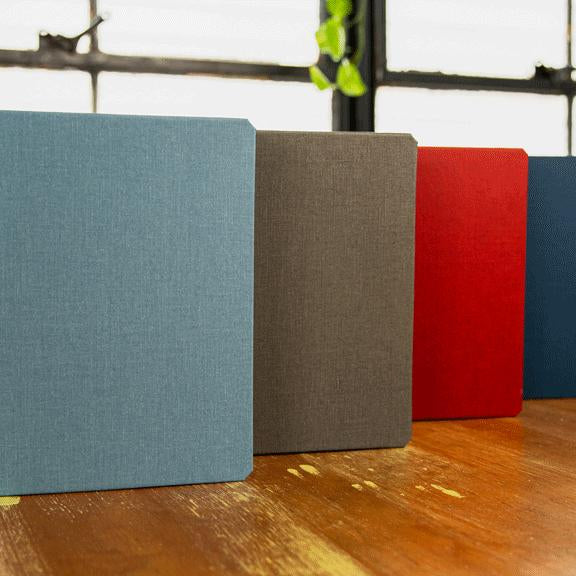
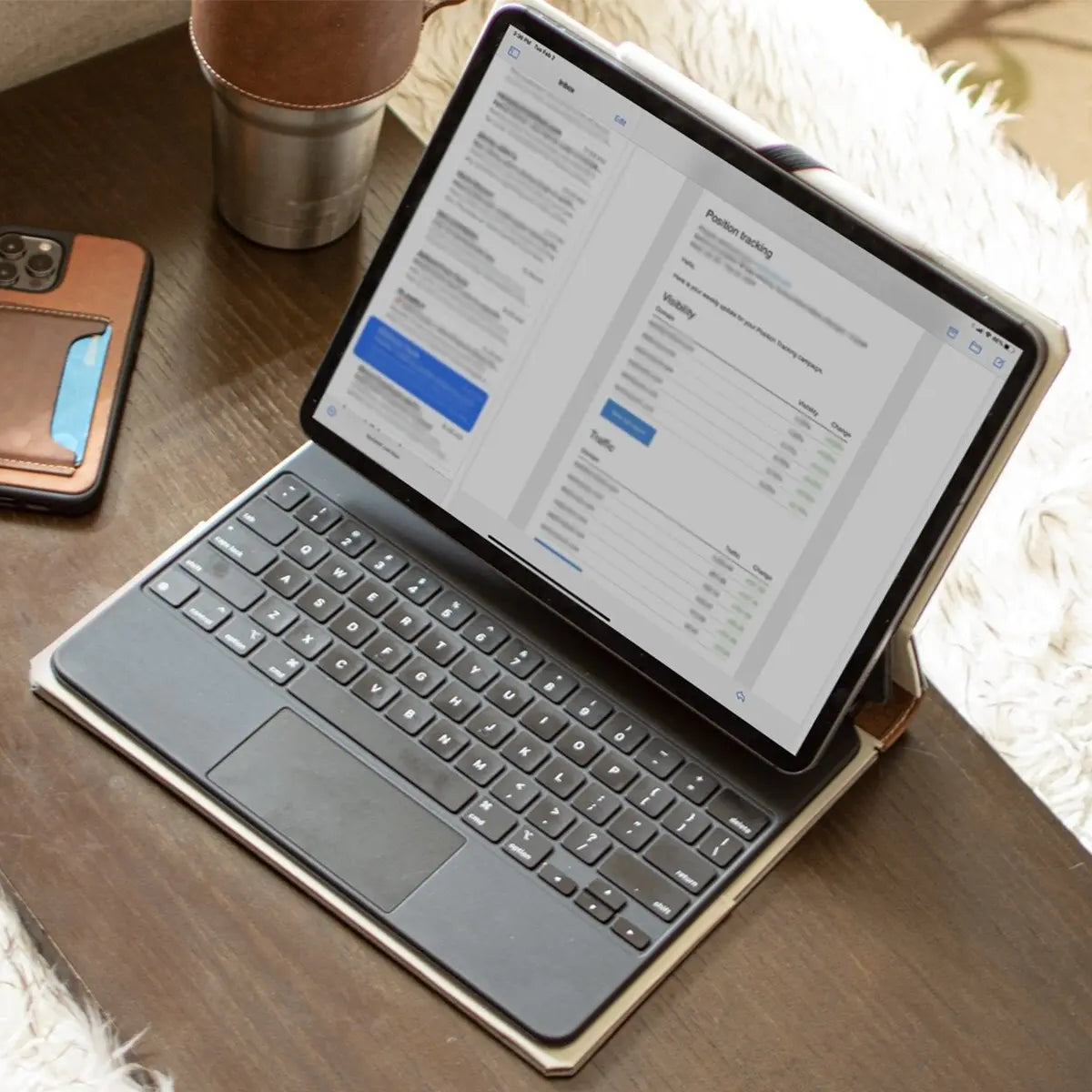
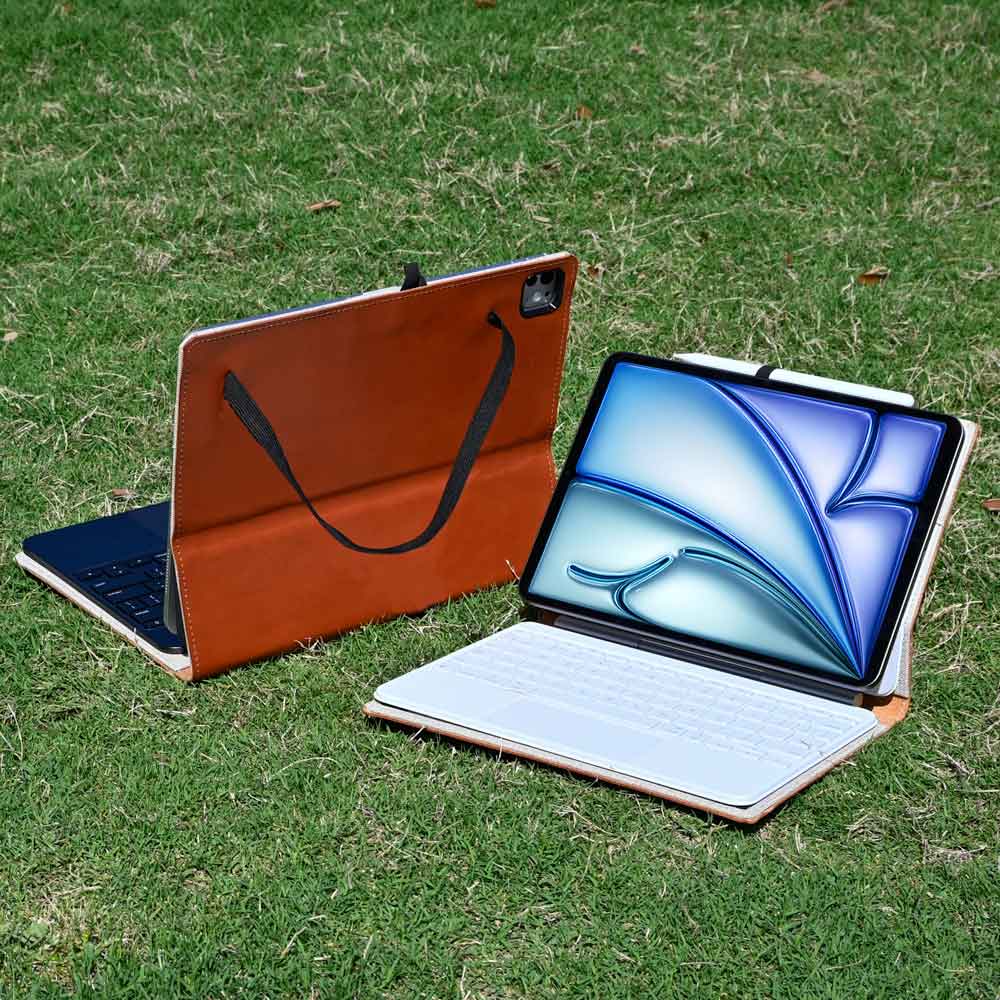
Without a permanently attached keyboard, the device is unburdened by extra weight, and slipping it into a stylish iPad leather case provides a comfortable grip while adding a touch of personalized luxury. The high-resolution touch screen acts as both the primary display and the primary input method.
For artists and visual thinkers, laying the tablet flat on a desk offers an ergonomic drawing experience that a traditional laptop simply cannot replicate.
Traditional Laptop Clamshell and Input Devices
Chromebooks typically utilize the classic clamshell laptop design. This structure inherently provides a sturdy base, a built-in physical keyboard, and a dedicated trackpad.
The hinged screen protects the interior components when closed and allows for highly adjustable viewing angles without needing an external stand. Having a physical keyboard permanently attached makes typing long emails or essays immediately accessible.
Furthermore, the clamshell design sits perfectly on your lap, offering a stable typing platform on airplanes, couches, or waiting room chairs.
Accessory Requirements and Connectivity Options
The streamlined design of an iPad often means sacrificing built-in connectivity. Most iPads feature a single USB-C port, which handles charging and data transfer.
If you want to connect a monitor, an external hard drive, and a wired mouse simultaneously, you will need a USB-C hub. Conversely, Chromebooks generally offer multiple ports scattered along the sides of the chassis.
You will frequently find traditional USB-A slots, multiple USB-C ports, headphone jacks, and even microSD card readers. This abundant connectivity allows Chromebook users to plug in older peripherals or expand storage without purchasing extra adapters.
App Ecosystems and Internet Dependency

A device is only as useful as the software it can run. The methods for acquiring applications and the reliance on a constant internet connection differ dramatically between Apple and Google.
Your choice depends heavily on whether you need robust local software or prefer the flexibility of cloud-based web apps.
App Store Applications and Local Storage
Apple strictly controls the App Store, ensuring a high level of security and optimization for every application available. The iPad excels at running localized software that leverages the powerful internal processors.
You can download highly sophisticated creative utilities for video editing, music production, and 3D modeling. Because these demanding applications require significant local storage, iPads are available with massive internal storage capacities.
The software lives entirely on the device, allowing for high-performance processing without any lag from network latency.
Google Play Store, Web Apps, and Cloud Integration
ChromeOS relies heavily on progressive web apps that operate directly within the browser. Programs like Google Docs, Sheets, and online photo editors run efficiently by offloading much of the heavy lifting to remote cloud servers.
This approach requires minimal local storage space, keeping hardware costs low. To supplement the web-based tools, ChromeOS also supports Android applications downloaded from the Google Play Store.
This allows users to access mobile games, media players, and utility apps right on their desktop environment, though the optimization for a trackpad and keyboard can sometimes be inconsistent.
Device Functionality in Offline Environments
Because iPads rely on locally installed applications, they remain highly functional even without Wi-Fi or cellular data. You can comfortably edit videos, sketch digital artwork, or play high-end games completely offline.
Chromebooks struggle slightly more when disconnected from the internet. While Google allows offline access to essential tools like Google Docs, and Android apps can run locally, the core ChromeOS experience heavily favors an active connection.
Without the web, a Chromebook loses access to its primary environment, limiting the device mostly to basic word processing and pre-downloaded media.
Cost Analysis and Value Proposition

Budget plays a significant role in any technology purchase. Looking solely at the sticker price rarely paints the full financial picture, as necessary add-ons and varying lifespans heavily influence the final cost.
Upfront Acquisition Cost and Purchase Price
Chromebooks dominate the budget-friendly market. Manufacturers build these machines to run a lightweight operating system, meaning they can utilize lower-tier processors and smaller storage drives without sacrificing basic performance.
You can frequently purchase a highly capable Chromebook for a fraction of the cost of a premium laptop. iPads present a wider pricing spectrum.
The base model iPad remains relatively affordable, but upgrading to the Air or Pro models significantly inflates the initial purchase price, pushing them into the same pricing tier as mid-range or premium computers.
Hidden Expenses for Essential Accessories
The upfront cost of a Chromebook includes everything needed to get straight to work; you get a screen, keyboard, and trackpad all in one box. iPads operate differently.
To achieve laptop-level productivity on an iPad, you must purchase external peripherals. High-quality keyboard cases, digital styluses, and protective covers add hundreds of dollars to the final checkout price.
If your goal is heavy typing or precise graphic design, these accessories are not optional luxuries, but essential tools that drastically increase your total investment.
Device Longevity and Software Support Lifespan
Apple is well known for providing operating system updates for many years after a device launches. An iPad can reasonably expect five to seven years of active software support, which helps the hardware retain a remarkably high resale value over time.
Google handles lifespan differently through an Auto Update Policy. Every Chromebook comes with a designated expiration date for guaranteed security and software updates, usually lasting around ten years from the device's original release date.
While this provides excellent long-term security, the budget hardware inside cheaper Chromebooks often begins to feel sluggish well before the software updates officially cease.
Target Use Cases and Ideal Demographics

Determining the best piece of hardware requires looking at who will be using it and what tasks they need to accomplish. A device perfectly suited for a third-grade classroom might frustrate a university researcher or a corporate IT manager.
Matching the platform to the appropriate user ensures maximum productivity and minimal friction.
Primary and Secondary Education Suitability
Chromebooks dominate the K-12 education sector for several practical reasons. They are highly durable, cheap to replace, and feature physical keyboards that help younger students develop essential typing skills early on.
School IT departments appreciate the simplified Google Admin console, which allows them to mass-deploy software and restrict browsing access across thousands of units seamlessly. iPads are frequently utilized in early education due to their intuitive touch screens, which cater well to students who lack the fine motor coordination required for a trackpad.
Higher Education and Academic Requirements
University students often demand more versatile devices for rigorous academic tasks. An iPad paired with an Apple Pencil is exceptionally popular for annotating PDF readings, sketching complex scientific diagrams, and taking handwritten notes in crowded lecture halls.
However, for writing a twenty-page research paper, the traditional Chromebook setup shines. The built-in keyboard and precise window management make juggling multiple browser tabs, citation managers, and word processors far more efficient than swiping between full-screen mobile apps.
Everyday Leisure, Productivity, and Fleet Administration
For home users wanting a casual screen for watching movies, scrolling social media, or playing games on the couch, the iPad offers an unmatched leisure experience. Its vibrant screen and portable nature make it perfect for media consumption.
Remote workers checking emails or managing basic spreadsheets often find a Chromebook offers the best balance of productivity and cost. Furthermore, businesses deploying hardware to remote customer service teams frequently prefer Chromebooks.
The cloud-centric operating system ensures that no local company data is compromised if the physical machine is lost or stolen.
Conclusion
The iPad and the Chromebook each excel in completely different computing environments. Apple provides a premium, highly tactile device that shines in offline creative workflows, media consumption, and stylus-based note-taking.
Google counters with a highly pragmatic, budget-friendly machine built around a physical keyboard, cloud storage, and robust desktop window management. Choosing the right device requires an honest assessment of your daily habits.
If you prioritize saving money, typing long essays, and web-based collaboration, a Chromebook will serve you perfectly. Conversely, if your routine involves digital illustration, heavy local processing, or you simply prefer a lightweight tablet for watching media on the go, investing the extra money into an iPad ecosystem is the superior choice.
Frequently Asked Questions
Can I use an iPad as a full laptop replacement for college?
You can use an iPad for college, but it requires purchasing an external keyboard case to type comfortably. While fantastic for handwritten notes and reading PDFs, an iPad struggles with extensive multitasking and heavy research sessions compared to a traditional hinged laptop operating system.
Do Chromebooks work when I do not have an internet connection?
Chromebooks maintain basic functionality offline, but they heavily rely on an active internet connection for most tasks. You can edit pre-downloaded Google Docs or run saved Android apps. However, you will lose access to web-based tools and cloud storage files until you reconnect to Wi-Fi.
Why are Chromebooks so much cheaper than iPads?
Chromebooks run a lightweight web browser operating system that requires far less processing power and internal storage space. Manufacturers save money by utilizing lower-tier hardware components. Furthermore, the base purchase price includes the screen, keyboard, and trackpad without demanding expensive secondary accessory purchases.
Which device is better for a younger student in elementary school?
A Chromebook is generally better for young students because the durable clamshell design protects the fragile screen inside a backpack. The built-in keyboard allows children to learn essential typing skills early. Schools also prefer them because administrators can easily manage web filtering across hundreds of devices.
How long will a Chromebook receive software updates compared to an iPad?
A new Chromebook receives guaranteed security and software patches for up to ten years through Google's Auto Update Policy. Apple typically supports an iPad with operating system updates for five to seven years. Both options provide excellent long-term security for your daily computing needs.
{ "@context": "https://schema.org", "@type": "FAQPage", "mainEntity": [ { "@type": "Question", "name": "Can I use an iPad as a full laptop replacement for college?", "acceptedAnswer": { "@type": "Answer", "text": "You can use an iPad for college, but it requires purchasing an external keyboard case to type comfortably. While fantastic for handwritten notes and reading PDFs, an iPad struggles with extensive multitasking and heavy research sessions compared to a traditional hinged laptop operating system." } }, { "@type": "Question", "name": "Do Chromebooks work when I do not have an internet connection?", "acceptedAnswer": { "@type": "Answer", "text": "Chromebooks maintain basic functionality offline, but they heavily rely on an active internet connection for most tasks. You can edit pre-downloaded Google Docs or run saved Android apps. However, you will lose access to web-based tools and cloud storage files until you reconnect to Wi-Fi." } }, { "@type": "Question", "name": "Why are Chromebooks so much cheaper than iPads?", "acceptedAnswer": { "@type": "Answer", "text": "Chromebooks run a lightweight web browser operating system that requires far less processing power and internal storage space. Manufacturers save money by utilizing lower-tier hardware components. Furthermore, the base purchase price includes the screen, keyboard, and trackpad without demanding expensive secondary accessory purchases." } }, { "@type": "Question", "name": "Which device is better for a younger student in elementary school?", "acceptedAnswer": { "@type": "Answer", "text": "A Chromebook is generally better for young students because the durable clamshell design protects the fragile screen inside a backpack. The built-in keyboard allows children to learn essential typing skills early. Schools also prefer them because administrators can easily manage web filtering across hundreds of devices." } }, { "@type": "Question", "name": "How long will a Chromebook receive software updates compared to an iPad?", "acceptedAnswer": { "@type": "Answer", "text": "A new Chromebook receives guaranteed security and software patches for up to ten years through Google's Auto Update Policy. Apple typically supports an iPad with operating system updates for five to seven years. Both options provide excellent long-term security for your daily computing needs." } } ] }