
The modern classroom relies heavily on portable technology, and the iPad has become a popular digital workspace for academic life. It replaces heavy paper notebooks, organizes class materials, and provides a flexible tool for daily coursework.
Selecting the right model depends on specific criteria, including course requirements, available budget, personal study habits, and long-term durability.
Key Takeaways
- The standard iPad delivers the best value for general lecture notes and reading, while the M-series iPad Air is the most balanced choice for students who need fast split-screen multitasking.
- The iPad Pro is built specifically for demanding creative workloads like 3D modeling and video editing, while the compact 8.3-inch iPad mini is ideal for clinical rotations and laboratory fieldwork.
- Aim for at least 128GB of internal storage to comfortably store digital textbooks and class files, or upgrade to 256GB if you work with offline lecture recordings and design media.
- While an iPad works well for writing and daily assignments, technical and STEM majors still require a traditional laptop to run departmental desktop software and secure test browsers.
- Equipping the device with an Apple Pencil, a keyboard attachment, and durable leather cases and sleeves transforms the tablet into a protected, productive study workstation.
Overview of the iPad Lineup for Education
Apple offers several tablet models designed to meet various student needs, budgets, and study styles. Finding the right fit requires comparing the distinct hardware tiers and seeing how each tablet performs everyday school tasks.
The Standard iPad: Features and Value for Core Academic Tasks
The standard iPad serves as the entry-level option in Apple's tablet family, delivering reliable everyday performance at an accessible price. It handles standard academic responsibilities with ease, including web browsing for research projects, typing papers, reading digital textbooks, and streaming video lectures.
The display provides ample room for comfortable reading and split-screen note-taking without adding unnecessary bulk to a backpack. While it lacks some advanced display and processing features found in higher tiers, its balance of affordability and utility makes it an attractive choice for primary, secondary, and general college coursework.
The iPad Air: Balance of Performance and Portability
The iPad Air occupies the middle tier, combining thin and lightweight hardware with powerful M-series processors. This model appeals to students who require snappy performance for multitasking, such as running multiple apps side-by-side or reviewing dense PDF files while typing lecture notes.
It supports modern accessories, including advanced styluses and magnetically attaching keyboards, creating a versatile setup for rigorous high school and university schedules. Its sleek design and durable build ensure that it remains fast and capable across several years of academic demands.
The iPad Pro: High-End Hardware for Intensive Workloads
The iPad Pro represents the top tier of tablet computing, built for users with demanding technical or creative requirements. It features an advanced OLED ProMotion screen with a smooth 120Hz refresh rate, top-of-the-line processing speed, and expanded system memory.
These specifications make the device well-suited for heavy photo editing, 4K video editing, complex 3D rendering, and audio production. However, because it carries a substantial price tag, students enrolled in general lecture courses may find its premium capabilities far exceed their daily needs.
The iPad mini: Compact Form Factor for Mobile Study
The iPad mini offers extreme portability with its compact 8.3-inch screen, allowing students to hold it comfortably in one hand or slip it into a lab coat pocket. It functions exceptionally well as a digital notepad, an e-reader for assigned literature, or a quick-reference tool for flashcards and laboratory data.
The primary compromise comes down to screen area; typing long essays and arranging multiple windows side-by-side can feel cramped compared to larger models.
Key Hardware Specifications and Selection Factors

Evaluating tablet hardware ensures that a chosen device remains responsive and functional throughout a student's academic career. Comparing screen technology, processing speed, memory, and battery life helps pinpoint the right configuration for individual coursework.
Display Dimensions, Resolution, and Refresh Rate Metrics
Screen dimensions range from the compact 8.3-inch mini to the expansive 13-inch Air and Pro models, with the 11-inch size serving as a balanced middle ground. An 11-inch panel fits standard student desks easily, while a 13-inch display provides a canvas that closely matches the size of standard printer paper, making split-screen multitasking comfortable.
Display resolution remains sharp across the lineup, supporting visual comfort during long study sessions. Standard models use 60Hz displays, whereas Pro models feature 120Hz ProMotion panels, which reduce handwriting latency and make scrolling through documents noticeably smoother.
Processor Capabilities and Long-Term System Support
Apple equips its baseline devices with capable A-series chips, while higher-tier models use desktop-class M-series silicon. A-series processors provide plenty of speed for document creation, web browsing, and media consumption.
In contrast, M-series chips handle heavy computational loads and advanced software tools without stuttering. Apple provides operating system updates and security support for many years across all models, ensuring that devices purchased at the start of a degree program stay secure and functional through graduation.
Storage Capacity Requirements for Course Material and Media
Internal storage determines how many apps, textbooks, lecture recordings, and offline files a device can hold. Entry-level capacities work well for students who rely primarily on cloud platforms like Google Drive, iCloud, or Microsoft OneDrive.
However, students who download large textbook libraries, store high-definition lecture videos, or work with creative media assets should consider upgrading to higher storage tiers to avoid frequent file management headaches.
Battery Life and Peripheral Port Connectivity
Most iPad models deliver around ten hours of continuous web browsing or video playback on a single charge, which reliably covers a full day of classes and study sessions. All modern iPads feature USB-C ports, simplifying connections to charging cables, external hard drives, and flash drives.
Pro models feature faster Thunderbolt transfer rates and higher display output bandwidth, allowing smooth connection to external monitors for desk setups.
Academic Specialization and Device Compatibility

Academic majors place vastly different demands on mobile technology. Matching tablet hardware to the practical workflows of specific fields of study prevents software bottlenecks and enhances daily productivity.
Humanities, Social Sciences, and Lecture Coursework
Students in the humanities and social sciences spend substantial time reading academic papers, highlighting digital documents, and drafting essays. An entry-level iPad or an iPad Air paired with a comfortable keyboard case suits these tasks well.
These models easily run reference management tools, word processors, and digital planner applications, allowing students to keep course readings organized and complete writing assignments from anywhere on campus.
STEM, Computer Science, and Technical Disciplines
Technical disciplines often require specialized computation, mathematical notation, and data analysis software. While tablets excel at writing out complex formulas and sketching diagrams by hand, certain programming environments and engineering programs require a full desktop operating system.
Science and engineering students frequently use remote desktop software or web-based coding environments on their tablets, making the iPad a secondary note-taking tool alongside a dedicated computer.
Digital Arts, Graphic Design, and Creative Media
Creative fields demand accurate color representation, precise stylus response, and substantial hardware power. The iPad Pro and iPad Air offer wide color support and full compatibility with advanced styluses, making them excellent choices for digital illustration, animation, and video editing.
High internal memory on Pro models allows creative software to process complex multi-layer files without slowdowns or app crashes.
Healthcare, Medicine, and Clinical Fieldwork
Medical, nursing, and healthcare students frequently transition between lecture halls, laboratory settings, and clinical rotations. In clinical environments, a compact device like the iPad mini fits neatly into uniform pockets for quick access to patient charts, drug interaction guides, and anatomy reference apps.
Larger screens remain useful in classrooms for studying detailed three-dimensional anatomical models, but portability is often the deciding factor during active clinical shifts.
Essential Hardware Accessories and Input Devices

Accessories transform a bare tablet into an adaptable academic workstation. Selecting appropriate styluses, keyboards, and protective covers maximizes device utility and guards against accidental damage.
Stylus Options and Apple Pencil Compatibility
A digital stylus allows students to annotate slides, sketch diagrams, and write notes by hand. Apple offers several stylus options, including the Apple Pencil USB-C, the Apple Pencil 2nd Generation, and the Apple Pencil Pro.
The entry-level model offers accurate writing and palm rejection at a lower price point, while higher-end styluses introduce pressure sensitivity, wireless magnetic charging, and shortcut gestures. Third-party styluses offer economical alternatives for simple handwriting, though they usually omit pressure tracking and advanced gesture controls.
Keyboard Attachments, Trackpads, and Desktop Emulation
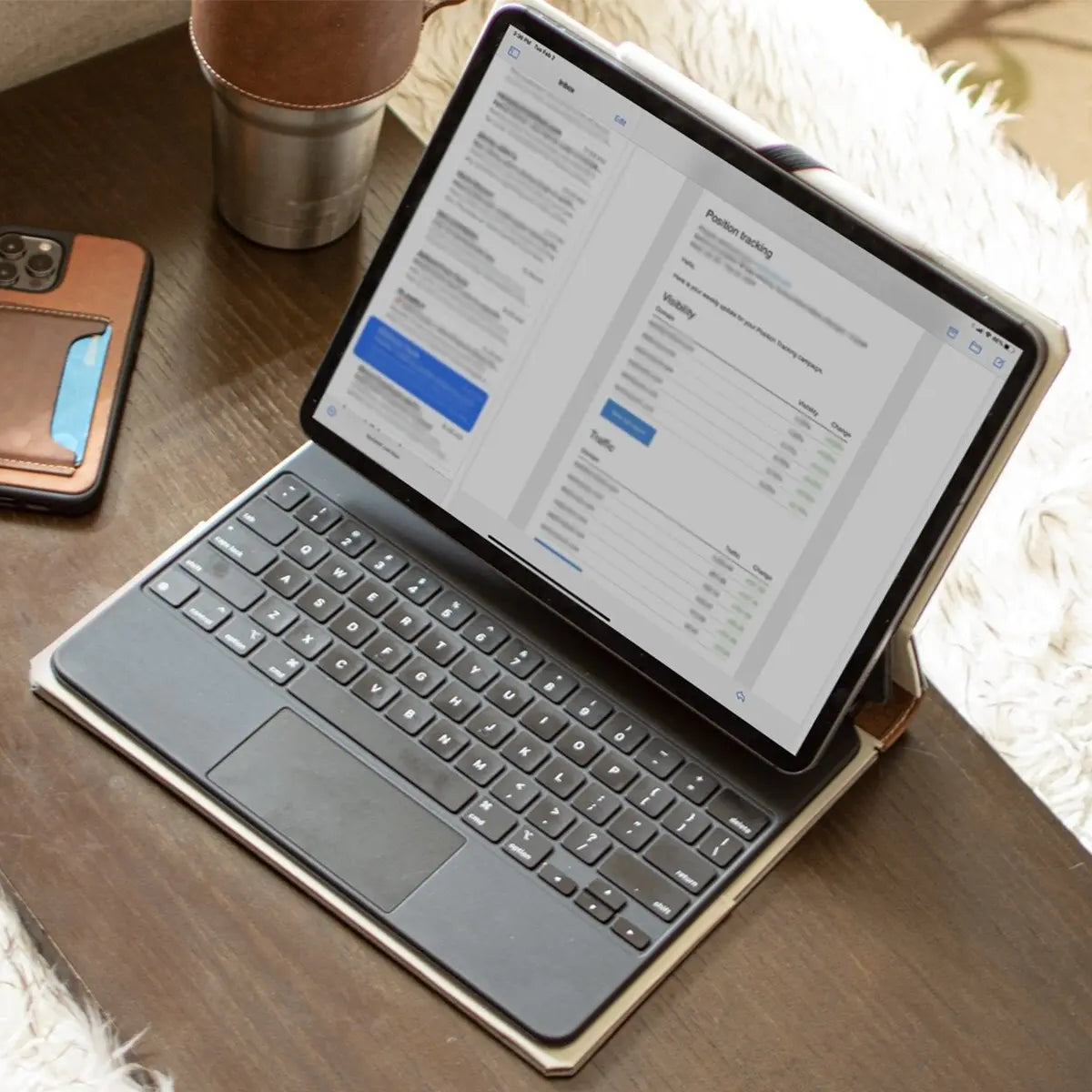
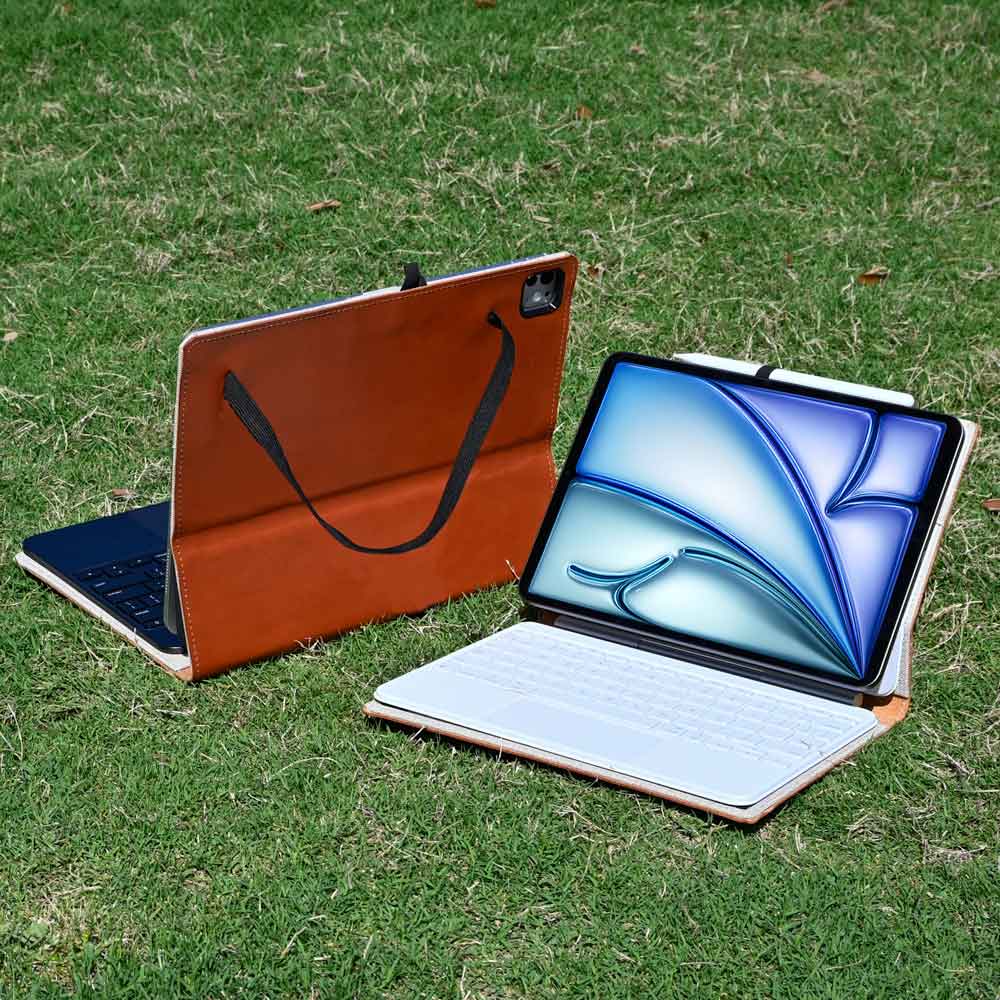
Typing extensive research papers requires a reliable keyboard attachment. Full folio cases provide an integrated keyboard and trackpad, turning the tablet into a laptop-like workstation that sits securely on lecture hall desks.
Standalone Bluetooth keyboards offer ergonomic typing angles for study desks in dorms or libraries. Adding trackpad support makes selecting text and switching between apps much faster than tapping the screen repeatedly.
Screen Protectors, Protective Cases, and Device Durability
Campus life exposes mobile devices to crowded bags, accidental drops, and heavy daily use. Matte screen protectors add a textured, paper-like friction that makes handwriting feel more natural while cutting down on overhead lighting glare.
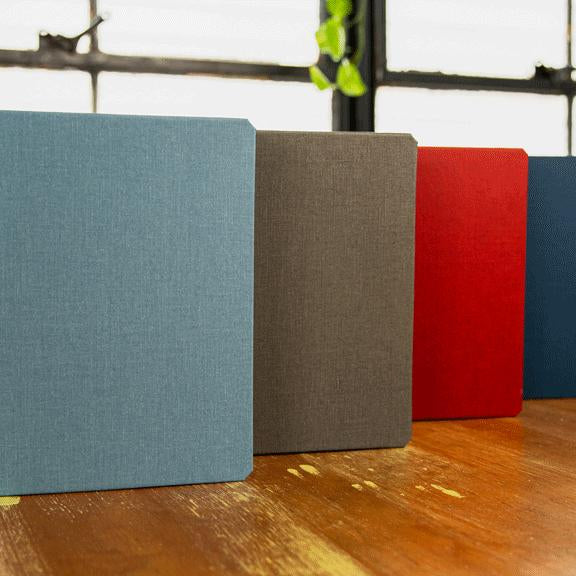
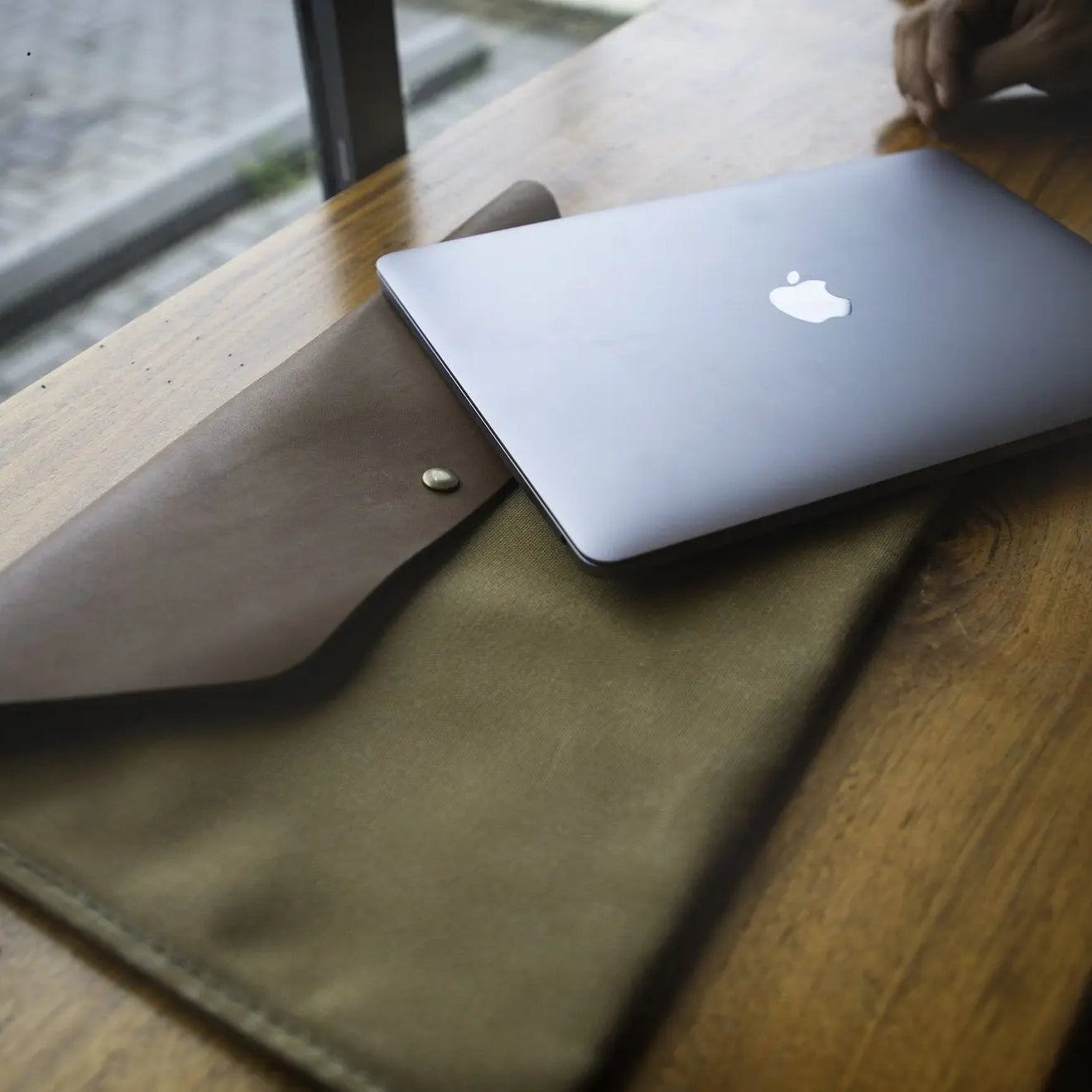
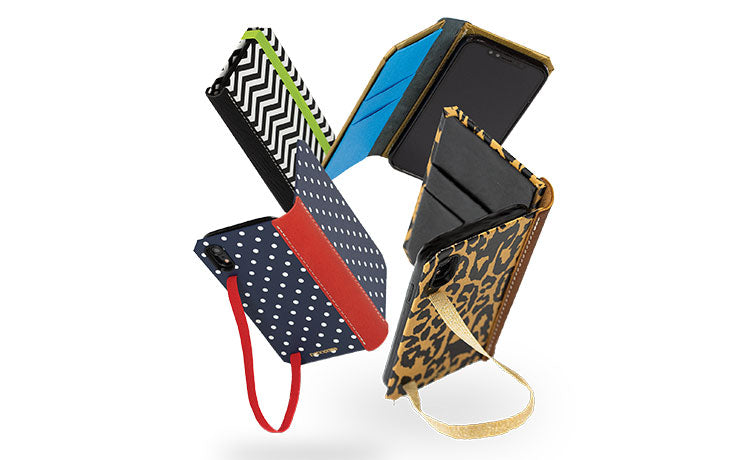
Tempered glass protectors offer superior impact protection against screen cracks. Pairing these with durable leather iPad cases and sleeves ensures that the tablet survives transit between lecture halls without cosmetic or structural damage.
Comparison Between the iPad and Traditional Laptops

Deciding between a tablet and a traditional laptop involves evaluating operating system capabilities, institutional software requirements, and multi-window productivity. Recognizing where tablets excel and where they encounter limitations helps determine if a tablet can serve as a primary computer.
iPadOS Desktop Class Features versus Traditional Operating Systems
iPadOS features desktop-class web browsing and window management features that support side-by-side app arrangements. However, the mobile operating system remains more restrictive than macOS or Windows.
While it handles web applications and mobile software smoothly, users cannot install traditional desktop software packages or access deep system customizations, which can limit productivity for advanced computing tasks.
Institutional Software, Secure Test Browsers, and Platform Restrictions
Colleges and testing centers frequently require specific software tools for coursework, online examinations, and remote proctoring. Many locked-down browser utilities and departmental applications are coded strictly for Windows and macOS.
Students should consult their department guidelines before relying solely on a tablet, ensuring that all required academic portals and test environments run reliably.
File Management, Multi-Window Organization, and Efficiency
iPadOS provides a built-in Files app capable of managing local documents, connecting to external drives, and unzipping compressed folders. Despite these features, moving files between multiple locations remains faster and more flexible on traditional desktop computers.
Multi-window workflows on tablets require deliberate window management, whereas desktop computers allow unrestricted window placement across multiple physical monitors.
The Hybrid Setup: The Tablet as a Secondary Display and Digital Notebook
Many students find maximum efficiency by pairing a tablet with a traditional laptop. In this hybrid arrangement, the laptop handles heavy typing, coding, and specialized academic software, while the tablet serves as a dedicated digital notebook and secondary monitor.
Wireless connectivity tools allow seamless cursor movement and file sharing between devices, creating a flexible dual-screen workstation for library study sessions.
Conclusion
Finding the right iPad comes down to matching specific academic requirements with the right balance of performance and budget. The standard iPad remains the best budget-friendly choice for note-taking, reading, and routine coursework.
For students who need faster multitasking and desktop-class processing power, the iPad Air serves as the most balanced option across most university disciplines. Creative majors in digital arts and video production benefit most from the advanced display and power of the iPad Pro, while healthcare and clinical students gain the most utility from the pocket-sized iPad mini.
Pairing the chosen tablet with the right accessories, from responsive styluses and keyboard folios to durable protective cases, creates a dependable digital workspace tailored to long-term academic success.
Frequently Asked Questions
Can an iPad completely replace a laptop for college?
An iPad can replace a laptop for general coursework, but it cannot fully replace a laptop for majors requiring specialized desktop software. Students in humanities or business who mainly write essays, take digital notes, and use web browsers will do fine with a tablet. However, engineering and computer science majors still require a traditional computer for complex programs.
How much storage do I actually need on a student iPad?
Most students need at least 128GB of internal storage to comfortably store apps, textbooks, and class documents. Base storage models work well if you store most files in cloud services like Google Drive or OneDrive. However, students saving offline lecture videos or working with large design files should choose 256GB.
Which iPad is best for taking handwritten notes in class?
The iPad Air with an Apple Pencil is the best overall setup for handwritten class notes. Its 11-inch laminated screen provides a natural writing surface with minimal gap under the pen tip. While the standard iPad also handles handwriting, the Air adds convenient magnetic stylus charging and smoother split-screen multitasking.
Is the iPad Pro worth the extra money for college?
The iPad Pro is only worth the extra cost for students in graphic-heavy majors like digital animation, architecture, and video production. Its OLED display and fast refresh rate look stunning, but standard coursework like reading PDFs does not require this power. An iPad Air offers plenty of speed for less money.
Do I need an official Apple keyboard or will a third-party one work?
A third-party keyboard works just as well as an official Apple keyboard for typing college essays and notes. While Apple models attach magnetically without separate charging, third-party Bluetooth keyboards cost significantly less. Many alternatives also provide full-body case protection and adjustable viewing stands at an affordable price.