
The iPad outgrew its origins as a simple media consumption tablet years ago. Today, Apple's flagship device operates as a highly capable laptop replacement, but unlocking that massive productivity potential requires one vital upgrade.
You need a dedicated keyboard and trackpad. This reality forces buyers into a difficult financial and practical dilemma.
Should you purchase the expensive, premium Apple Magic Keyboard, or should you opt for a versatile, cost-effective third-party keyboard case?
Key Takeaways
- Apple provides an exceptional typing and trackpad experience through a minimalist, floating cantilever design.
- Third-party alternatives deliver heavy-duty drop protection and versatile viewing angles at a significantly lower price.
- Smart Connector accessories offer instant pairing but will draw power directly from your tablet battery.
- Budget keyboard cases require independent charging and pairing due to their reliance on traditional Bluetooth connectivity.
- Digital artists generally prefer kickstand models because they easily adjust into low, stable drawing angles.
Design, Form Factor, and Lapability
Physical design fundamentally dictates how you interact with your device. A poor design creates friction, while a thoughtful layout enhances productivity.
The way a keyboard case is structured determines not only how it looks but also how it functions in various environments.
The Floating Cantilever Design
Apple built its premium option around a unique aesthetic. The iPad attaches magnetically to the back plate and hovers above the keyboard.
This floating cantilever design is visually striking and allows you to adjust the viewing angle smoothly. A rigid hinge provides excellent support, ensuring the screen stays exactly where you position it without wobbling during heavy typing.
The Kickstand Approach
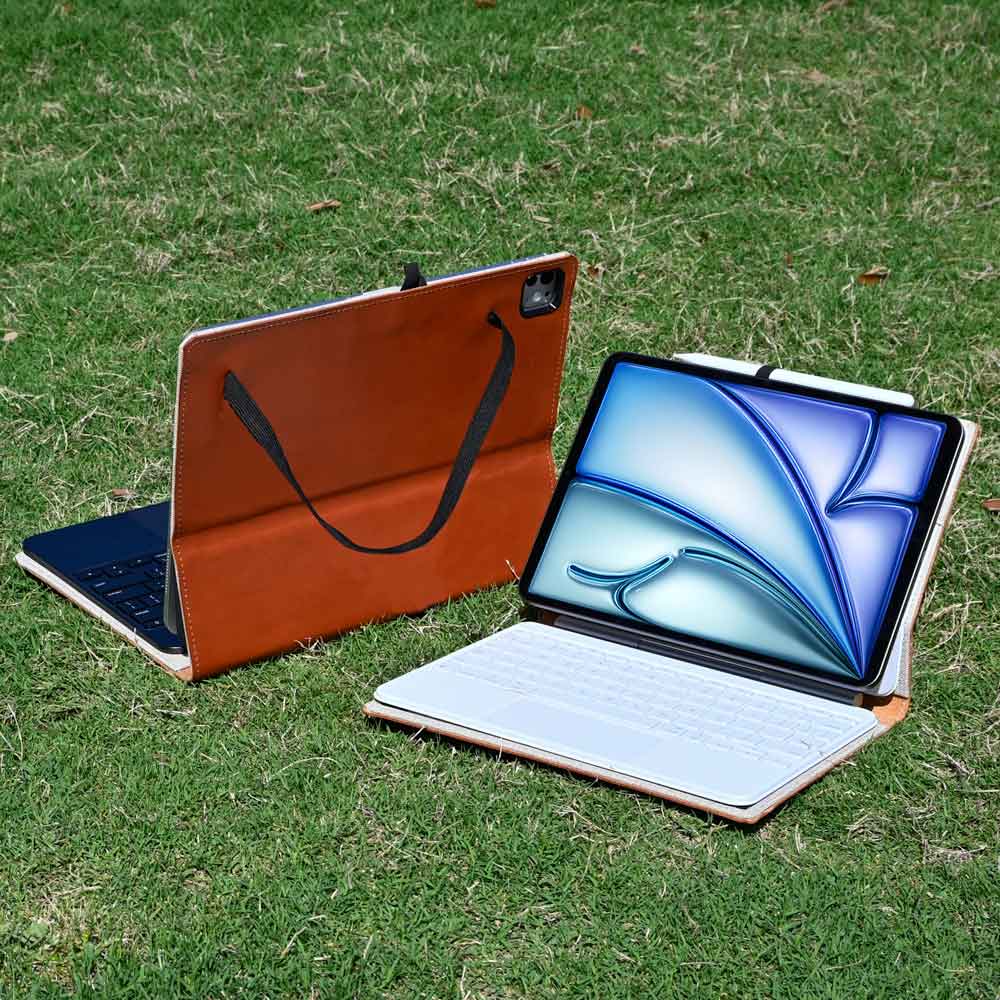
Most third-party alternatives take a different route by utilizing a kickstand similar to the Microsoft Surface. A protective case wraps around the tablet, and a foldable flap pops out from the back to prop up the screen.
This approach provides a wide range of angles and is incredibly stable on hard, flat surfaces like a solid desk or a kitchen counter.
Lapability and Small Spaces
Working away from a desk exposes the limitations of different designs. Balancing a device on your lap requires a sturdy base.
The rigid bottom of Apple's option mimics a traditional laptop, making it highly stable on uneven surfaces like a couch or your legs. It also fits perfectly on a cramped airplane tray table.
Kickstand designs struggle in these scenarios because the stand requires significantly more depth, often slipping off the back of a tray table or digging uncomfortably into your knees.
Weight and Portability
Turning a thin tablet into a laptop replacement adds considerable bulk. Buyers are often surprised by the heavy weight of Apple's setup.
The base needs to be heavy to counterbalance the floating screen and prevent the whole unit from tipping over. Third-party cases also add substantial thickness and weight, but this bulk usually comes from the heavy-duty protective materials rather than internal counterweights.
Protection and Tablet Versatility

Beyond simply typing out emails, a physical accessory dramatically alters how you interact with the tablet itself. Buyers must weigh their need for physical protection against the desire for a seamless transition between typing and handheld use.
Vulnerability vs. Ruggedness
Apple prioritized minimalism, leaving the edges of the tablet completely exposed. If you drop the device while it is attached to the floating stand, there is virtually zero drop protection to save the aluminum frame or the glass screen.
Competitors prioritize ruggedness. Third-party options often feature thick TPU bumpers that wrap securely around every corner, offering substantial peace of mind for clumsy users or those who work in rough environments.
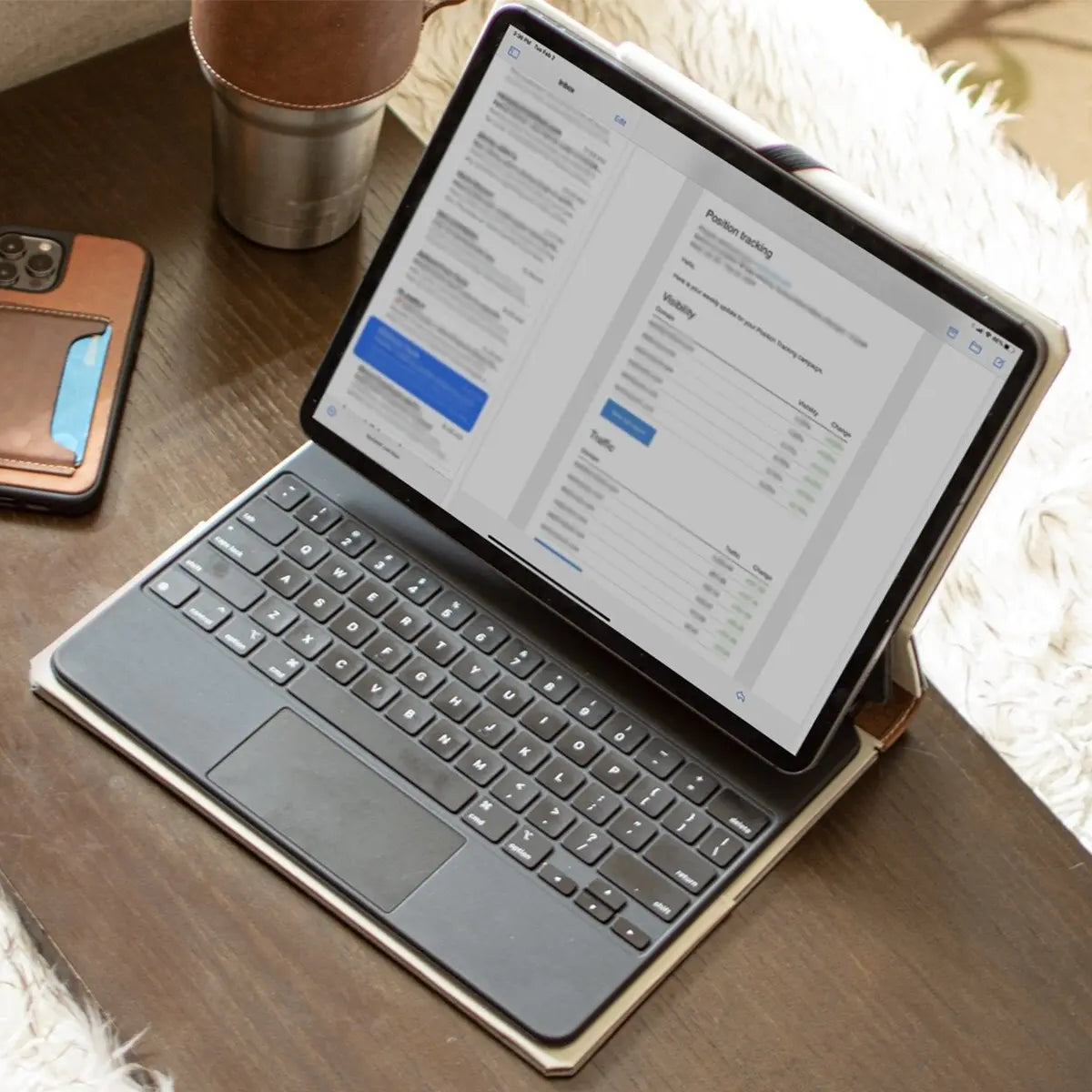
If you want Apple's premium typing experience without leaving your device exposed, a dedicated Magic Keyboard case perfectly bridges the gap.
Transitioning to Tablet Mode
Sometimes you just want to read a book or play a game. Transitioning away from the typing mode reveals a stark contrast in usability.
The magnetic method allows you to pull the bare tablet off the stand with one hand, giving you an incredibly lightweight device instantly. Third-party options usually require you to fold the entire attachment fully back behind the screen, resulting in a thick, heavy slab.
Alternatively, you can detach the bottom portion, but you are still left holding a tablet encased in a thick rubber bumper.
Drawing and Note-taking Angles
Digital artists and students have specific ergonomic needs. Writing or drawing requires the screen to lay mostly flat or at a low draft angle.
Kickstand models excel here, allowing you to push the screen down to a comfortable, sturdy position for the Apple Pencil. The floating design completely fails in this regard.
You cannot push the screen flat; you must remove the tablet entirely and lay it bare on your desk to draw.
Apple Pencil Security
Losing a pricey stylus is a constant fear. Apple relies entirely on the built-in magnets on the side of the tablet to hold the Pencil in place.
This looks clean but leaves the stylus exposed to being easily knocked off in a backpack. Rugged alternatives typically include physical flaps that wrap over the stylus or dedicated molded slots to lock the tool securely in place while traveling.
The Typing and Trackpad Experience

A physical keyboard and trackpad serve one primary purpose. They must offer a comfortable, accurate, and responsive input method.
The quality of the switches and the tracking surface will dictate your daily typing speed and overall frustration levels.
Keyboard Feel and Switch Travel
Tactile response makes all the difference during long typing sessions. Apple uses scissor-switches that provide crisp, satisfying feedback and excellent vertical travel.
The experience feels nearly identical to typing on a premium MacBook. Many competitors utilize membrane switches or alternative mechanisms.
While highly functional, these alternative switches often feel slightly mushy or less responsive compared to the premium scissor mechanisms.
The Function Row Advantage
Efficiency often relies on quick access to system controls. Most third-party manufacturers include a dedicated row of function buttons at the top of the deck.
These buttons allow you to instantly adjust media playback, volume levels, and screen brightness without ever touching the screen. The original Magic Keyboard notably lacks this dedicated function row, forcing users to rely on the control center for simple volume and brightness adjustments.
Trackpad Quality and Responsiveness
Navigating the operating system requires a smooth tracking surface. The premium floating design features a glass trackpad that offers exceptional glide and pinpoint accuracy.
It perfectly translates the complex multi-touch gestures baked into the operating system. Budget alternatives generally rely on plastic trackpads.
These plastic surfaces can feel slightly sticky under the finger and occasionally struggle to register quick two-finger or three-finger swipes with the same flawless precision.
Backlighting Capabilities
Working in dimly lit environments necessitates a backlit deck. Apple includes auto-adjusting illumination that reads the ambient room light and changes the backlight brightness perfectly without user input.
Competing options also offer backlighting, but they often require manual adjustment. Furthermore, budget models frequently suffer from light bleed, where distracting beams of light escape from underneath the plastic caps rather than illuminating just the letters themselves.
Some brands do offer fun customization options like changing the color of the backlight, adding a personalized touch.
Power, Connectivity, and Port Management

How your keyboard communicates with your tablet significantly impacts your daily workflow. A seamless connection keeps you focused on your work, while smart power management dictates how long you can stay productive away from a wall outlet.
Smart Connector vs. Bluetooth
The method used to pair your accessory determines its convenience. High-end options utilize Apple's proprietary Smart Connector interface.
This hardware allows for instant pairing the moment the tablet magnetically snaps into place. You never have to deal with manual pairing processes, and the accessory requires no separate charging.
Budget alternatives generally rely on traditional Bluetooth technology. This approach forces you to manage a separate battery for the accessory itself, complete with its own charging cable, and introduces the occasional frustration of dropped connections or pairing delays.
Battery Draw
Convenience often comes with a trade-off. Accessories utilizing the Smart Connector draw power directly from the tablet's internal battery to function.
Powering the typing mechanism, the trackpad, and the backlighting will noticeably drain your main device faster than standard use. If you type for hours with the backlight set to maximum brightness, you will find yourself reaching for a charger much sooner than expected.
Bluetooth cases avoid this specific issue entirely since they rely on their own independent power source.
Passthrough Charging Integration
Managing cables efficiently matters for users who rely on external storage or displays. Apple includes an exclusive USB-C passthrough charging port directly in the hinge of its premium stand.
This dedicated port handles power delivery, which frees up the actual high-speed Thunderbolt port on the tablet itself. You can keep your device charged while simultaneously plugging in external solid-state drives, SD card readers, or external monitors.
Third-party cases lack this built-in passthrough port, forcing you to rely on clunky hubs if you need to charge and transfer data simultaneously.
Price vs. Value: Matching Lifestyle to Budget

Evaluating the true worth of an accessory requires looking beyond the retail price. You must weigh the initial financial investment against the practical benefits the device brings to your daily routine.
The most expensive option is not automatically the best fit for every user.
The Premium Apple Tax
Purchasing official Apple hardware always requires a significant financial commitment. The exceptionally high price tag buys you unmatched minimalist aesthetics, flawless software integration, and a premium typing experience.
You are paying for an accessory designed in perfect harmony with the tablet itself. For users who prioritize elegance, a lightweight form factor, and a true laptop-like feel, the exorbitant cost often feels justified by the sheer quality of the engineering.
The Cost-to-Feature Ratio
Stepping outside the official ecosystem drastically shifts the value proposition. Many top-tier third-party alternatives offer highly competitive experiences for roughly half the price of the official hardware.
By spending less, you frequently gain heavy-duty drop protection, dedicated media controls, and highly adjustable viewing angles. The compromise usually involves accepting thicker materials, a slightly inferior plastic trackpad, and a bulkier overall footprint.
You get far more utility per dollar spent, but you sacrifice the sleek, refined aesthetic.
User Profile Recommendations
Determining the perfect match depends heavily on your daily environment. For the commuting student, protection and versatility usually take top priority.
A rugged case ensures the device survives being tossed into crowded backpacks or accidentally bumped against harsh lecture hall desks. For the digital artist, easily detachable and fold-flat cases are superior.
An artist needs a stable, flat surface for extensive stylus work without the hassle of completely removing a protective shell. Conversely, the desk-bound professional generally prioritizes pure typing speed and rapid software navigation.
If you spend your day drafting emails on your lap or compiling reports on a desk, the premium glass trackpad and perfectly balanced cantilever design offer an unmatched daily experience.
Conclusion
Choosing the right accessory ultimately comes down to balancing opposing priorities. Apple provides unmatched elegance and typing perfection with a seamless, highly responsive design.
Alternatively, third-party competitors prioritize heavy-duty drop protection, highly versatile viewing angles, and a significantly lower price tag. The ideal choice inherently depends on your specific lifestyle.
Your final decision should focus entirely on where and how you plan to use your tablet on a daily basis.
Frequently Asked Questions
Do third-party keyboard cases drain the tablet battery?
Accessories utilizing the proprietary Smart Connector draw power directly from your tablet, which naturally reduces its overall battery life. Conversely, Bluetooth models rely on their own independent internal batteries. This means they will never drain your main device, but they do require regular separate charging.
Is the official trackpad better than budget alternatives?
The premium official hardware features a smooth glass surface that handles multi-touch gestures with flawless precision. Cheaper alternatives generally rely on plastic tracking surfaces. While these plastic options function perfectly fine for basic navigation, they occasionally struggle to register quick swipes accurately.
Do budget keyboard cases offer dedicated media controls?
Most third-party manufacturers include a highly useful row of dedicated function buttons along the top of the deck. These buttons allow you to instantly adjust screen brightness, control volume, and manage music playback. Apple omitted this convenient feature from its original premium model.
How do you transition to drawing mode with these cases?
The official floating design forces you to physically remove the tablet if you want to draw flat on a desk. Competitors utilizing built-in kickstands allow you to simply push the screen down into a low draft angle, making them significantly better for digital artists.