
Choosing the wrong iPad stylus can result in a frustrating mismatch of features or, worse, an accessory that cannot pair with your tablet at all. With the expansion of Apple's lineup to include both the budget-friendly USB-C model and the premium Apple Pencil Pro, selecting the correct tool requires careful consideration.
While both devices look remarkably similar on a desk, their internal hardware and target audiences differ. A mismatched purchase means either overpaying for advanced capabilities you will never use or missing out on essential drawing features.
Key Takeaways
- The Apple Pencil Pro only works with the newest iPad models, including the iPad Pro (M4 and M5), iPad Air (M2, M3, and M4), and iPad mini (A17 Pro).
- The Apple Pencil (USB-C) offers much broader compatibility, pairing with any iPad that has a USB-C port, including base-model iPads and older generations.
- Pressure sensitivity is exclusive to the Apple Pencil Pro, meaning the USB-C model cannot change line thickness based on how hard you press.
- The Apple Pencil Pro includes advanced physical sensors for squeezing, rotating the barrel, haptic feedback, and location tracking through Apple's Find My app.
- While the Pro model charges and pairs wirelessly when attached magnetically to the tablet, the USB-C model requires a physical cable to charge and only attaches magnetically for storage.
The Compatibility
Before buying a stylus, verifying hardware support is crucial. Apple has designed its accessories with specific technical requirements, meaning that physical compatibility depends strictly on which tablet you own.
A mismatch will prevent the stylus from pairing or charging, rendering it unusable.
The Exclusivity of the Apple Pencil Pro
The Apple Pencil Pro is engineered with specific hardware components that restrict its use to recent iPad models. Its advanced sensor system and magnetic charging architecture are designed to match the magnetic array of newer tablets.
Specifically, the Pro model is only compatible with the iPad Pro 11-inch and 13-inch (M4 and M5), the iPad Air 11-inch and 13-inch (M2, M3, and M4), and the iPad mini (A17 Pro). Standard iPads or older Air and Pro models lack the specialized internal magnetic structures required to pair and charge the stylus, making it entirely incompatible with those older devices.
The Broad Utility of the Apple Pencil (USB-C)
In contrast, the Apple Pencil (USB-C) functions as a highly adaptable option across many generations of Apple hardware. Because it relies on a physical cable for pairing and power delivery rather than wireless inductive charging, it works across almost every iPad model that features a USB-C port.
This extensive list includes the newest M-series iPad Pro and iPad Air models, older iPad Pro models from the first generation of 11-inch up to the sixth generation of 12.9-inch, older iPad Air models, the budget-friendly tenth-generation iPad, and the iPad mini (6th generation and A17 Pro). This wide compatibility allows the USB-C model to serve as a reliable option for households or workplaces with a mix of newer and older iPads.
Managing Legacy Hardware (1st & 2nd Generation)
Recognizing compatibility limits is also vital for users who own older accessories. The original first-generation Apple Pencil, which uses a Lightning connector, and the second-generation model, which pairs via a magnetic strip on older iPads, cannot crossover to the newest generation of iPad hardware.
Devices like the M4 iPad Pro or the M2 iPad Air have updated their internal magnet layouts and dropped support for these legacy devices. Consequently, upgrading to a new tablet usually means retired legacy accessories must be replaced with either the USB-C model or the Pro model.
Core Technological Capabilities

Internally, both accessories utilize advanced digital ink technology to offer high precision and low latency. However, their underlying feature sets diverge when it comes to capturing the physical nuances of drawing and writing.
Choosing between them depends largely on how much control you require over your digital brushstrokes.
Pressure Sensitivity and Line Dynamics
The most significant technological gap lies in pressure sensitivity. The Apple Pencil Pro features built-in pressure sensors that register how hard you press against the screen, adjusting line thickness and opacity in real time.
This analog pressure sensitivity is completely absent from the USB-C model. On the USB-C version, every stroke is rendered at a uniform thickness unless manually adjusted in the software.
This makes the USB-C version well-suited for writing and basic diagramming, while illustrators will find the Pro model far more capable for dynamic line art and blending.
Tilt Detection and Shading Performance
Despite their differences in pressure detection, both models feature advanced tilt detection. This capability allows the tablet to calculate the precise angle of the stylus relative to the glass.
By angling either stylus, you can shade broad areas or produce softer charcoal effects, mimicking the behavior of traditional pencils. This makes both models capable of basic sketching and artistic shading, as the software registers the tilt of the tip identically.
Apple Pencil Hover Technology
Apple Pencil Hover is a proximity feature that detects the stylus tip up to 12 millimeters above the screen. When paired with compatible iPads, this capability displays a preview of your brush size, color, or tool before you touch the glass.
While both the Apple Pencil Pro and the Apple Pencil (USB-C) support hover technology, the user experience differs. On the Pro model, hover allows you to preview not only the brush size but also the exact rotation of shaped brushes, whereas the USB-C model only displays a standard pointer preview.
Advanced "Pro" Interactivity and Gestures

The premium designation of the Pro model is reinforced by several interactive hardware sensors designed to streamline digital tasks. These features reduce the need to constantly touch the screen to change settings or access tools, allowing for a more continuous creative workflow.
The standard USB-C model lacks these advanced sensors, operating as a more traditional, straightforward pointer.
The Squeeze Sensor and Contextual Palettes
The Apple Pencil Pro features a sophisticated squeeze sensor located near the lower end of the barrel. By applying a quick, physical squeeze, you can summon a customizable tool palette directly at your cursor location.
This palette allows you to swap brushes, change colors, or undo actions without needing to tap the screen or select options through software menus. The USB-C model has no pressure-sensitive barrel, meaning you must rely entirely on onscreen buttons to perform these changes.
Barrel Roll and Brush Orientation
An internal gyroscope inside the Apple Pencil Pro enables a feature called barrel roll. By rotating the barrel of the stylus between your fingers, you can dynamically change the orientation of shaped pens, calligraphy nibs, and artistic brushes.
This replicates the feeling of physical brush control, offering a fluid way to vary stroke direction. Because the USB-C model lacks a gyroscope, its brushes remain locked in a single orientation unless manually rotated via software slider controls.
Haptic Feedback for Action Confirmation
To provide a more tactile experience, the Apple Pencil Pro incorporates a custom haptic engine. This motor delivers subtle, physical vibrations to your fingertips to confirm inputs, such as when you squeeze the barrel, double-tap to switch tools, or snap a shape into alignment on the canvas.
These brief, distinct haptic pulses confirm that your gesture was registered without cluttering the screen with visual alerts, a sensory feature entirely missing from the silent USB-C model.
Find My Location Tracking
Losing a stylus can be an expensive mistake, which is why the Apple Pencil Pro includes hardware integration with Apple's Find My network. If the Pro model is misplaced, you can locate it using the Find My application on your Apple devices, guiding you back to its last known location.
The USB-C model lacks the necessary location-tracking chips, meaning that if it is lost, you must find it through traditional searching.
Physical Design, Charging, and Device Management

While both models share the signature white minimalist aesthetic, their internal architectures dictate different methods for power management and storage. These physical differences alter how you keep your stylus charged and secured during daily travel.
Wireless vs. Wired Power Delivery
The Apple Pencil Pro provides the convenience of wireless inductive charging. It attaches magnetically to the side of your iPad, pairing instantly and charging its internal battery whenever it is docked.
The Apple Pencil (USB-C) takes a manual approach, requiring a physical cable. Sliding back the rear cap reveals a female USB-C port, which must be connected to a power adapter or the iPad itself via cable to charge and pair.
This means the USB-C model cannot charge passively while docked, requiring you to monitor its battery level manually.
Storage and Transport Mechanics
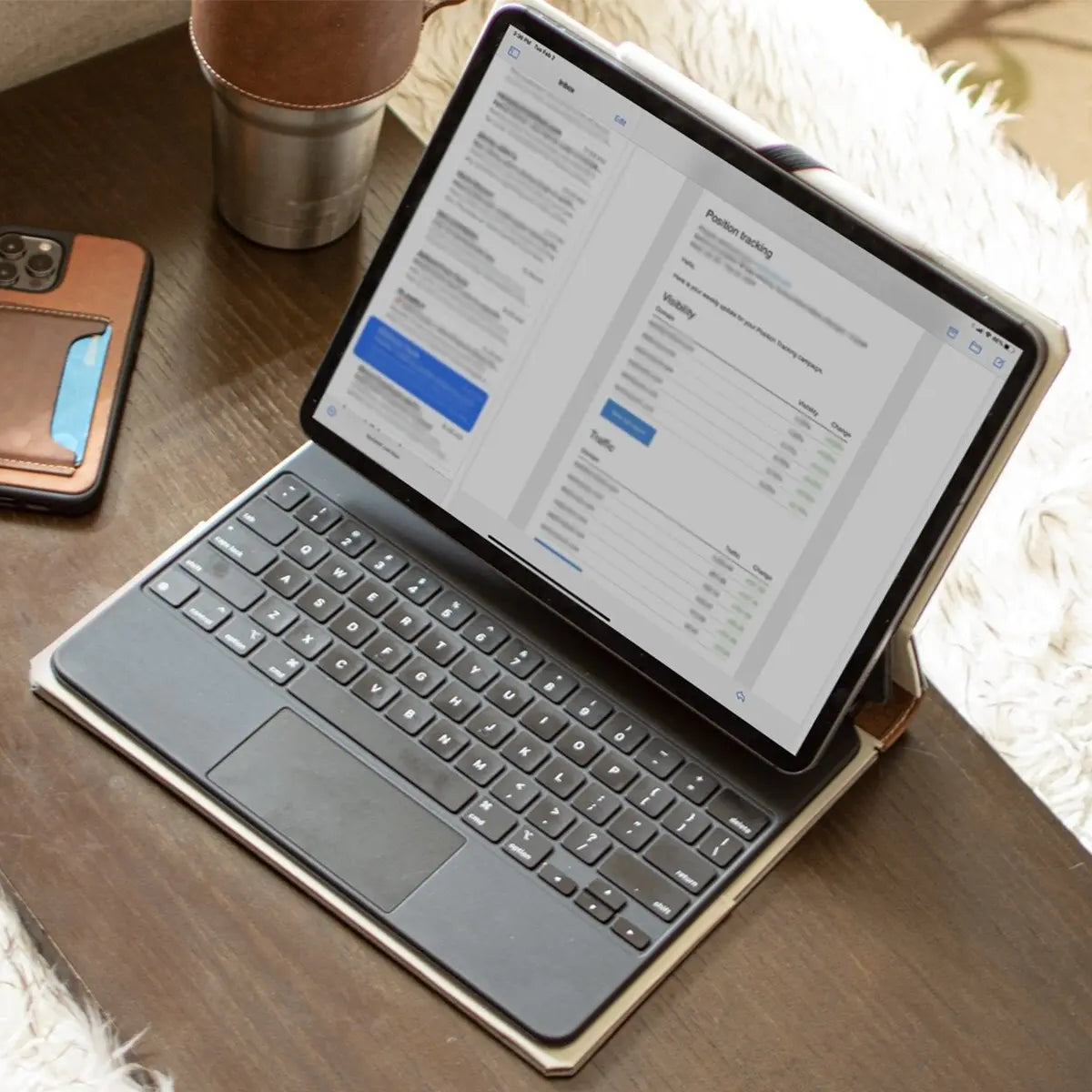
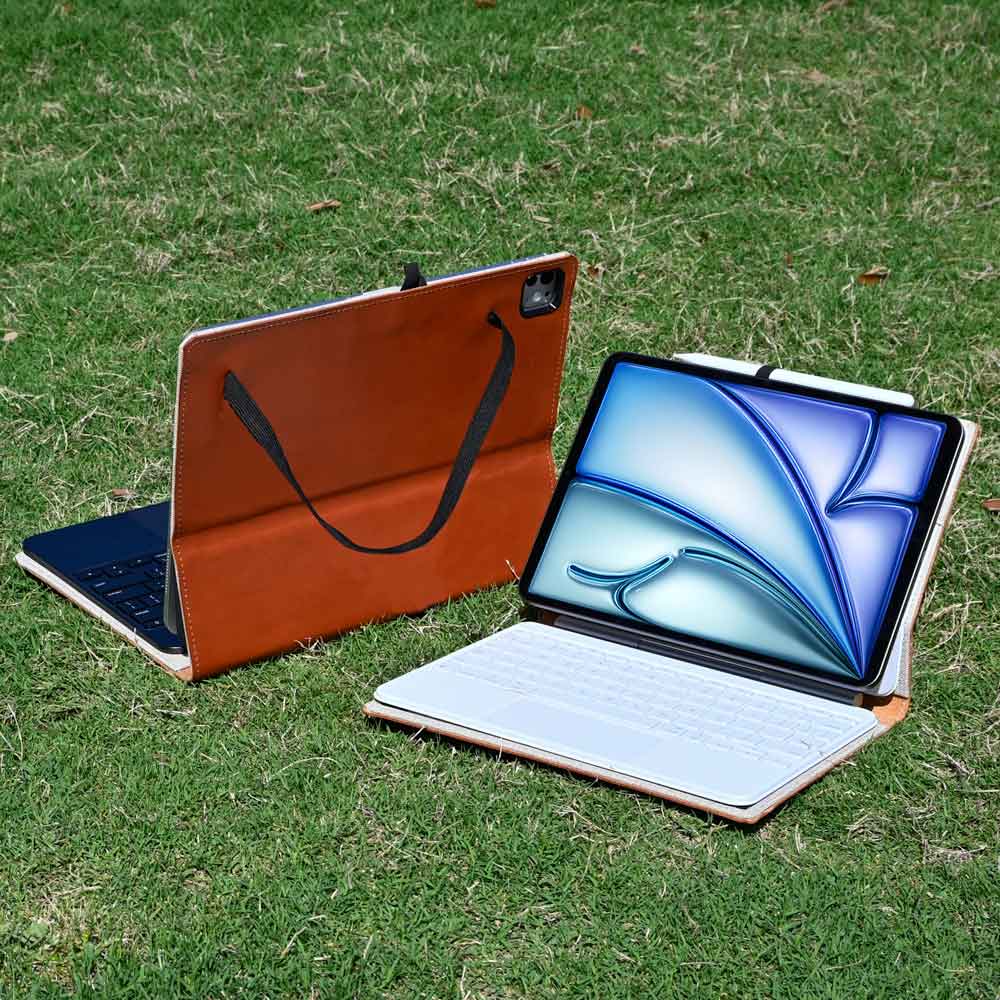
For storage during travel, both accessories use magnets to snap onto the flat edge of your tablet, though compatibility with your iPad case remains an important factor. A thick or heavy-duty iPad case can interfere with this magnetic bond, occasionally causing the stylus to detach inside a bag.
To address this, many protective cases are designed with dedicated pen slots, built-in loops, or secure wrap-around flaps to keep the stylus firmly in place when on the move. However, when using the Pro model, the iPad case must allow direct contact with the charging strip, or the stylus will remain in a passive storage state without receiving any electrical power.
Build, Finish, and Ergonomic Form Factor
Both models feature a matte white finish that is resistant to slipping, along with a flat edge to prevent them from rolling off flat surfaces. They are comparable in weight and balance, offering a comfortable grip for long sessions.
The USB-C model is slightly shorter because of its sliding cap design, making it feel a bit more compact in hand. The Pro model maintains the standard length of modern Apple styluses, providing a familiar balance for those used to the classic design.
Intentional Workflows

Selecting the appropriate stylus is not just a matter of checking hardware specs; it is about aligning the accessory with your specific daily tasks. Different professional and casual workflows require different levels of precision and convenience to remain efficient.
The Digital Art and Illustration Use Case
For creative professionals, designers, and illustrators, the Apple Pencil Pro is almost always the necessary choice. The combination of pressure sensitivity, barrel roll, and the squeeze sensor allows for expressive and natural drawing techniques.
Without pressure sensitivity, digital painting and sketching on the USB-C model feel flat and stiff, requiring tedious manual adjustments to change line weights. The Pro model offers the fluid, dynamic control needed for complex illustration workflows.
The Academic and Note-Taking Use Case
For students and academics, handwriting notes, highlighting textbooks, and annotating presentation slides do not require complex artistic controls. Because standard note-taking does not rely on pressure sensitivity, the Apple Pencil (USB-C) is highly efficient for this workflow.
It provides the same low-latency writing experience and precise tilt detection as the Pro model at a much lower price point, making it a sensible, cost-effective accessory for writing.
The Professional and Document Markup Use Case
For office executives and general professionals, daily tasks typically involve signing digital contracts, marking up PDFs, and using the stylus for general user interface control. The standard precision of the USB-C model is perfectly suited for these activities.
While the Pro model’s wireless charging is highly convenient, the straightforward functionality of the USB-C version is often more than enough to handle basic office workflows without unnecessary expense.
Conclusion
Choosing between the two available stylus models is straightforward once you apply a two-step framework. First, your iPad model will narrow your choices, as the Pro model operates only on select newer devices, while the USB-C version supports nearly any tablet with a USB-C port.
If your iPad supports both, your choice then depends on your specific budget and daily tasks. While illustrators and digital artists require the pressure sensitivity and gesture controls of the Pro model, students and professionals doing basic writing and document markup will find the cost-effective USB-C model perfectly adequate.
By matching physical compatibility with your actual drawing or writing needs, you can easily select the accessory that offers the most practical value.
Frequently Asked Questions
Will the Apple Pencil Pro work on my older iPad Air?
No, the Apple Pencil Pro only works with the M2, M3, and M4 generations of the iPad Air. Older iPad Air models lack the specific magnetic and internal hardware required to pair or charge this stylus. If you own an older iPad Air, you will need to choose the USB-C model instead.
Can I draw with the USB-C Apple Pencil if it doesn't have pressure sensitivity?
Yes, you can still draw with the USB-C Apple Pencil, though your lines will not change thickness based on how hard you press. Instead, you must manually adjust your brush size and opacity within your drawing software. This makes it highly functional for simple sketches, but less ideal for advanced digital painting.
How do I charge the USB-C Apple Pencil?
You charge the Apple Pencil (USB-C) by sliding open the rear cap and plugging in a standard USB-C cable. Unlike the Pro model, it cannot charge wirelessly when attached magnetically to the side of your iPad. You can plug the other end of the cable directly into your tablet or a power adapter.
Can I find a lost Apple Pencil using my phone?
You can find a lost Apple Pencil using your phone only if you own the Apple Pencil Pro, which supports Apple's Find My network. The standard USB-C model does not contain the necessary location tracking hardware. If you misplace the USB-C model, you will have to search for it manually without digital assistance.
Does the Apple Pencil Pro feel different to write with than the USB-C one?
The writing feel is physically identical because both models share the same dimensions, matte texture, and screen latency. However, the Pro model offers haptic feedback that provides physical vibrations to confirm your gestures. This makes the Pro model feel more interactive, while the USB-C version remains silent and completely passive during use.