
Spending over three hundred dollars on a keyboard case feels almost irresponsible. That price tag rivals the cost of entire budget laptops and turns a standard tablet purchase into a major financial commitment.
Apple promises this hardware is the missing link that transforms the iPad from a casual glass slate into a legitimate productivity machine. The magnetic floating design and trackpad integration certainly look impressive, but aesthetics do not always equal value.
We need to look past the sleek marketing to see if the daily functionality justifies the expense. It is time to find out if the user experience truly warrants the investment or if you are simply paying a premium for a floating hinge.
The "Magic" Experience: Typing, Trackpad, and Navigation
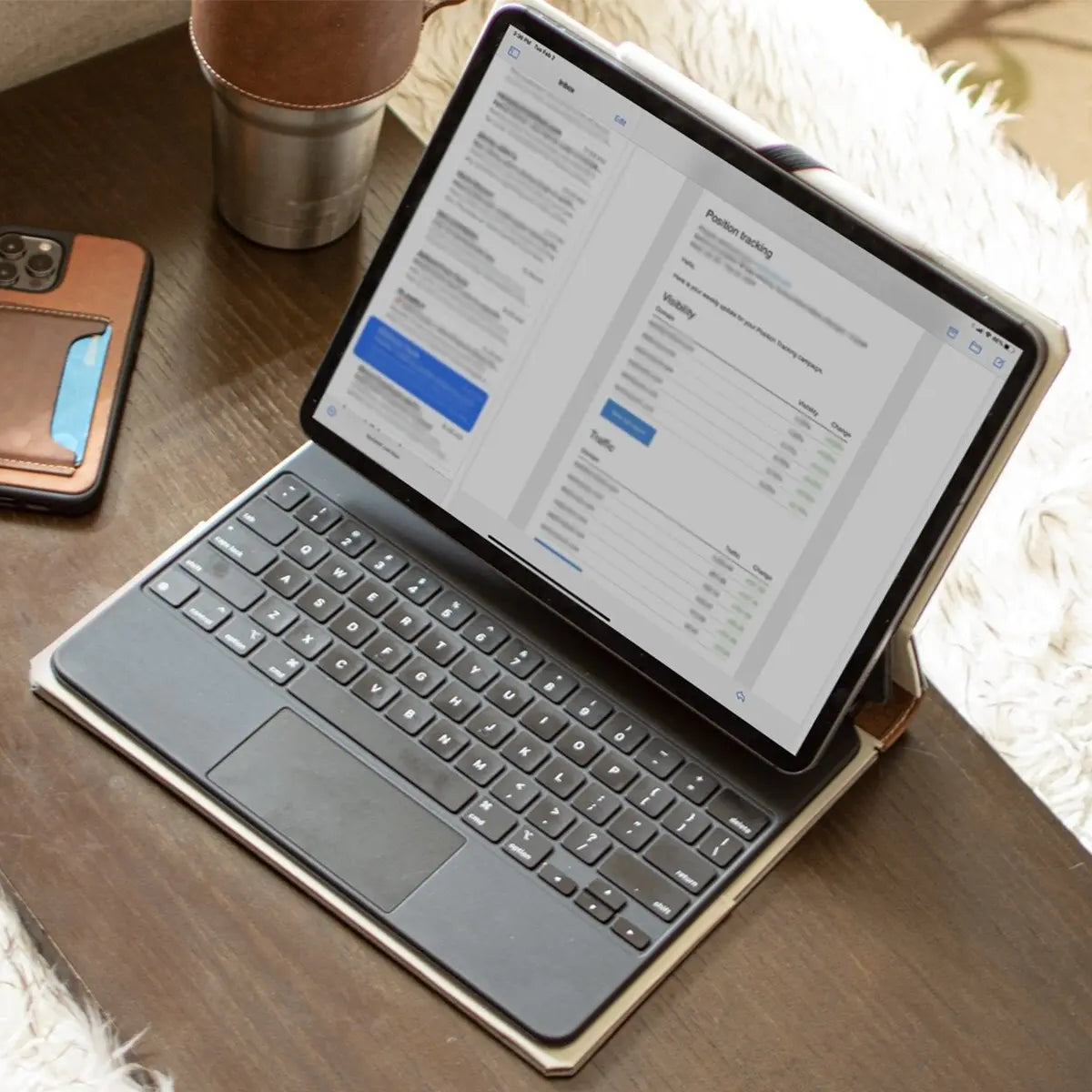
The primary justification for the steep price of this accessory lies in how dramatically it changes the way you interact with the device. Apple did not simply slap keys onto a cover; they attempted to replicate the input quality of their high-end laptops.
The goal here is to minimize the friction between thought and action, turning the iPad from a content consumption slate into a text-creation tool that feels natural to prolonged desktop users.
Laptop-Class Typing
The typing experience on the Magic Keyboard is immediately distinguishable from the fabric-covered Smart Keyboard Folio or other budget alternatives. Apple utilizes a scissor-switch mechanism with 1mm of travel, providing distinct tactile feedback that mimics the feel of a modern MacBook.
The keys are stable, spaced comfortably, and offer a satisfying click rather than a mushy thud. Backlighting is another significant addition, as it adjusts automatically based on ambient light conditions.
This makes working in dim environments feasible without needing to hunt for keys, a common frustration with cheaper Bluetooth keyboards.
The Trackpad Standard
While the keyboard is excellent, the trackpad is what truly separates this accessory from the pack. It features a glass surface that allows your finger to glide smoothly, offering a level of precision that plastic trackpads rarely achieve.
Because it connects via the Smart Connector rather than Bluetooth, latency is non-existent. The integration of multi-touch gestures is flawless; swiping between apps, returning to the home screen, or accessing the app switcher feels identical to using a Mac.
Third-party options often struggle to replicate this fluidity, frequently suffering from jittery scrolling or missed gestures.
iPadOS Integration
The hardware shines because the software was designed specifically for it. When you use the trackpad, the cursor appears as a translucent circle that snaps intelligently to buttons, app icons, and text fields.
This magnetic cursor behavior speeds up navigation significantly. Text editing, which was once a chore involving reaching up to the screen to move a cursor, becomes precise and rapid.
Selecting rows in a spreadsheet or highlighting paragraphs in a document is no longer a clumsy process. This deep integration allows users to keep their hands on the deck, maintaining a flow state that touch-only interaction constantly interrupts.
Design Engineering: The Floating Cantilever and Connectivity

Apple made a bold choice to prioritize a unique structural design over traditional folio mechanics. The physical engineering of the Magic Keyboard is distinct because it prioritizes a specific viewing experience and port management system that other cases cannot easily replicate.
It is built to function as a docking station that happens to be portable, rather than just a protective cover that happens to have keys.
The Floating Hinge
The most striking visual element is the cantilevered hinge design. Strong magnets in the back panel grip the iPad securely, suspending it above the keys.
This floating effect is not just for show; it brings the screen closer to the user’s eyes, which is ergonomically superior to cases that rest the tablet on the table surface. The hinge allows for smooth angle adjustment up to 130 degrees.
While the range is not as wide as a laptop, the resistance is tuned perfectly, holding the heavy tablet steady at whatever angle you choose without slipping.
"Lapability"
Using a tablet keyboard on a lap has historically been a miserable experience, primarily due to the kickstands required by competitors like the Microsoft Surface or Logitech alternatives. Kickstands need a long leg to stabilize the device, which often slides off the knee.
The Magic Keyboard solves this through weight distribution. The heavy base acts as a counterweight to the suspended iPad, creating a rigid structure that sits flat.
You can type comfortably on a couch or a park bench without the device wobbling or collapsing.
Pass-Through Charging
Integrated into the side of the hinge is a USB-C port dedicated solely to pass-through charging. This seemingly minor addition has a massive impact on usability.
By plugging the power cable into the keyboard, the iPad’s built-in USB-C port remains free for other peripherals. You can connect external drives, monitors, audio interfaces, or SD card readers without needing a messy dongle or hub to split the connection.
It effectively adds a port to a device that is notorious for its lack of connectivity options.
Ease of Transition
One of the most underrated features is the lack of friction when switching modes. Because the system relies entirely on magnets rather than clips or a plastic tray, you can grab the iPad and pull it off the stand in less than a second.
There is no case to peel off and no cable to unplug. When you want to read a comic on the couch or sketch with the Pencil, you have a naked, lightweight tablet.
When it is time to write an email, you simply snap it back on. This preserves the duality of the iPad, whereas other cases effectively trap the device in a bulky shell permanently.
The Compromises: Protection, Weight, and Durability

Despite the engineering marvels, the Magic Keyboard is far from a perfect accessory. It forces users to accept significant trade-offs in physical handling and long-term durability.
For an accessory that costs as much as an entry-level iPad, the list of physical downsides is surprisingly long, and these flaws can be deal-breakers for users who prioritize mobility and ruggedness over typing comfort.
The Weight Factor
The most immediate shock for new users is the density of the product. The Magic Keyboard is heavy.
When you combine a 12.9-inch iPad Pro with this keyboard, the total package weighs more than a MacBook Air. This negates the primary advantage of carrying a tablet.
If your main reason for owning an iPad is to have a featherlight device in your bag, this accessory will disappoint you. It turns a portable slate into a dense brick that can feel burdensome to carry around all day.
Lack of Protection
While it protects the screen and the back of the iPad when closed, the Magic Keyboard leaves the aluminum edges of the device completely exposed. If you drop the closed unit, the sides of your iPad will take the direct impact.
Furthermore, because the design encourages you to detach the iPad for tablet use, you are frequently handling a naked, slippery slab of glass and aluminum with zero protection. Unlike folio cases that include a bumper for the tablet itself, the Magic Keyboard offers no safety net once the device is detached.
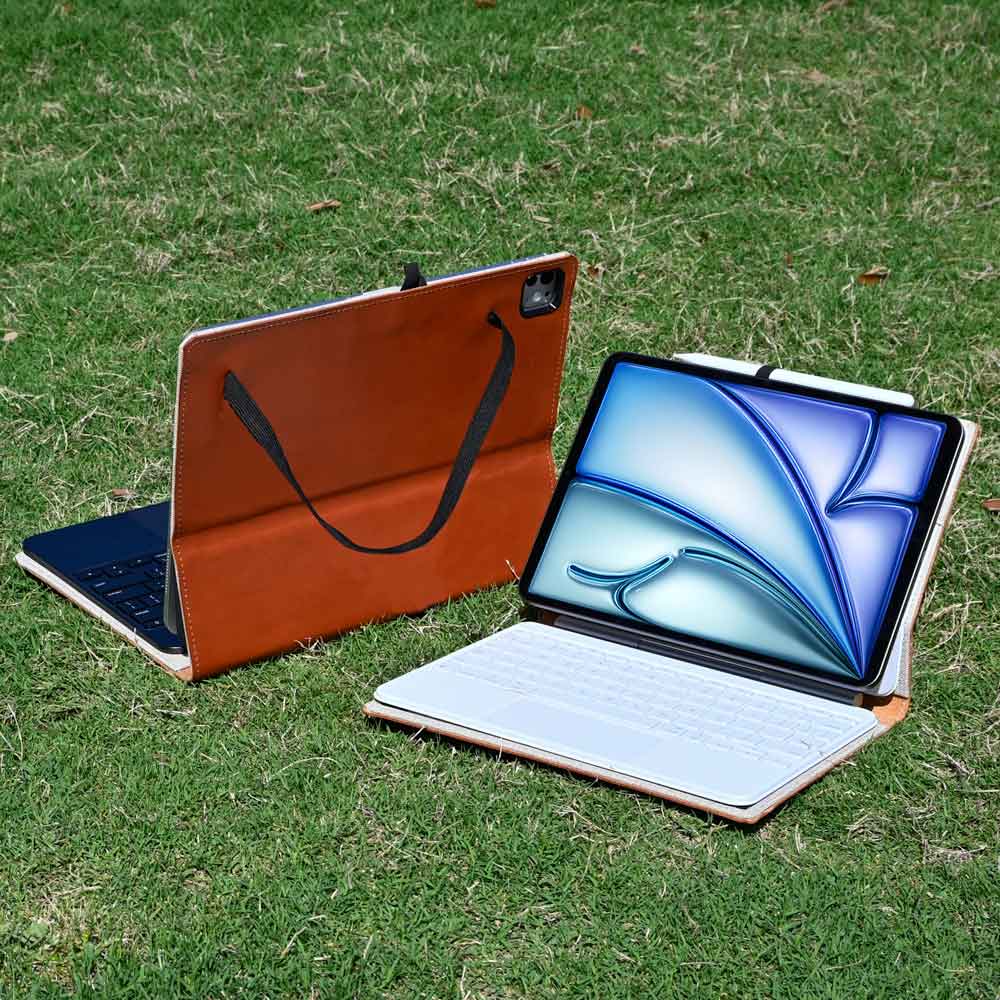
This structural vulnerability leads many owners to invest in a separate Magic Keyboard case to safeguard the exposed edges without sacrificing the magnetic functionality.
Material Quality
Apple wrapped the exterior of the keyboard in a soft-touch polyurethane material that feels premium out of the box but ages poorly. This material is a magnet for skin oils, grease, and dust.
Over time, it can develop shiny spots or wear down at the corners, peeling to reveal the inner layers. The white model, while visually striking, is notoriously difficult to keep clean and is susceptible to permanent staining or yellowing.
For a "Pro" accessory, the exterior durability does not match the price point.
The Missing Function Row
Perhaps the most frustrating omission for daily users is the lack of a top row of function keys. There are no physical buttons to adjust screen brightness, change volume, or control media playback.
To perform these simple tasks, you must interrupt your workflow to swipe open the Control Center on the screen. While newer models or competitor keyboards include these shortcuts standard, the original Magic Keyboard design forces you to take extra steps for basic system adjustments, which feels like an unnecessary hindrance on a productivity-focused device.
The Main Competitor: Magic Keyboard vs. Logitech Combo Touch

The Magic Keyboard does not exist in a vacuum. While Apple offers the sleekest integration, the Logitech Combo Touch stands out as the most capable rival.
This accessory challenges Apple directly by offering a different approach to productivity for a significantly lower price. Choosing between them requires you to decide what matters more to your daily workflow: the superior lap-typing experience of the Magic Keyboard or the functional versatility and protection offered by Logitech.
Price Discrepancy
The financial argument for the Logitech Combo Touch is compelling. It typically retails for over a hundred dollars less than the Apple equivalent.
That savings is substantial enough to cover the cost of an Apple Pencil or a year of software subscriptions. For budget-conscious buyers, the Logitech option provides 90% of the functionality, including a trackpad and Smart Connector support, for roughly two-thirds of the price.
You are essentially paying a premium for Apple’s floating hinge engineering and slightly better key switches, while Logitech offers a more pragmatic utility-per-dollar ratio.
Versatility Differences
The fundamental difference lies in how the two cases handle the iPad. The Magic Keyboard is a rigid dock; it has two modes: open or closed.
If you want to watch a movie or read a recipe, the keyboard is always sticking out in front of you. The Logitech Combo Touch utilizes a detachable keyboard and a kickstand.
You can rip the keyboard section off entirely and use the kickstand to prop the iPad up for content consumption. This makes the Logitech far more flexible for users who switch frequently between typing documents and watching Netflix, as the keyboard does not get in the way when it is not needed.
Protection Levels
If you are clumsy or work in rough environments, the choice is clear. The Logitech Combo Touch encases the iPad in a thick rubber bumper that covers the corners and edges.
It offers genuine drop protection. You can feel confident tossing it onto a desk or slipping it into a crowded bag.
The Magic Keyboard leaves the iPad’s aluminum sides completely exposed. A minor drop with the Apple case could result in a dented chassis or cracked screen, whereas the Logitech case is built to absorb that impact.
The trade-off is thickness, but the peace of mind is often worth the extra bulk.
Desk Footprint
While the kickstand on the Logitech is versatile, it requires significantly more surface area to be stable. To use the Logitech case comfortably, you need enough depth on your table to accommodate both the keyboard and the extended kickstand leg.
This makes it difficult to use on shallow surfaces, such as airline tray tables or narrow lecture hall desks. The Magic Keyboard is a cantilever system, meaning its footprint is small and contained.
If the keyboard fits on the table, the screen fits too. This makes the Apple option far superior for working in tight spaces where desk real estate is limited.
The Verdict: Matching the Keyboard to the User Profile

Deciding if this accessory is worth the money comes down to how you define your relationship with the iPad. The Magic Keyboard is an uncompromising tool designed for a specific set of tasks.
It is not a general-purpose case for everyone. By identifying your primary use case, you can determine if the benefits outweigh the financial and physical costs, or if you are better off with a more adaptable alternative.
The "Writer" and "Pro" User
If you earn a living by typing or spend hours responding to emails, the Magic Keyboard is the only viable choice. The stability of the floating hinge and the quality of the scissor switches reduce fatigue significantly during long writing sessions.
The pass-through charging port is also a critical feature for power users who need to keep dongles or external drives connected to the main USB-C port while working. For this demographic, the device is not just an accessory; it is a necessary upgrade that unlocks the full potential of the iPad as a primary work computer.
The Student
For students moving between dorms, libraries, and lecture halls, the Magic Keyboard is a risky investment. The lack of edge protection means one accidental slip from a desk could be catastrophic.
Furthermore, the polyurethane material stains easily and can look tattered after a semester of being shoved into a backpack. A cheaper, rugged alternative like the Logitech Combo Touch is usually the smarter buy.
It survives drops, costs less, and offers a detachable keyboard that makes it easier to read digital textbooks or handwrite notes during class without the keys getting in the way.
The Artist and Media Consumer
Visual artists often find the Magic Keyboard frustrating. To use the Apple Pencil for drawing, you must detach the iPad from the magnetic stand and lay it flat on a table, leaving the expensive keyboard behind.
There is no "drawing mode" where the case collapses into a slight angle. Similarly, if you primarily use your iPad to watch videos or browse social media, the heavy keyboard attached to the front is a nuisance.
If your workflow involves more touching and drawing than typing, the rigidity of the Magic Keyboard creates more friction than freedom.
The Laptop Replacement Seeker
If your goal is to abandon your laptop entirely, the Magic Keyboard is the hardware bridge that makes that dream possible. It provides the cursor control and typing speed necessary to handle complex spreadsheets, documents, and remote desktop applications.
It turns the iPad into the most modular computer on the market, a proper laptop when you need to work and a pristine tablet when you want to relax. While it is expensive and heavy, it is the only accessory that truly delivers on the promise of making the iPad a legitimate laptop replacement.
Conclusion
Ultimately, the true value of the Magic Keyboard depends entirely on your daily output. If you primarily use your iPad to consume media, browse the web, or sketch with the Pencil, spending this much money on a heavy dock makes little sense.
This accessory is a specialized tool meant for people who treat the iPad as a dedicated workstation. While the price tag is undeniably high, it remains the absolute best typing and trackpad experience available for the platform.
Competitors like Logitech offer better protection and versatility for the average user, but they cannot match the seamless, laptop-like feel of Apple’s design. If typing is your priority, this is the only keyboard that matters.